Quick answer
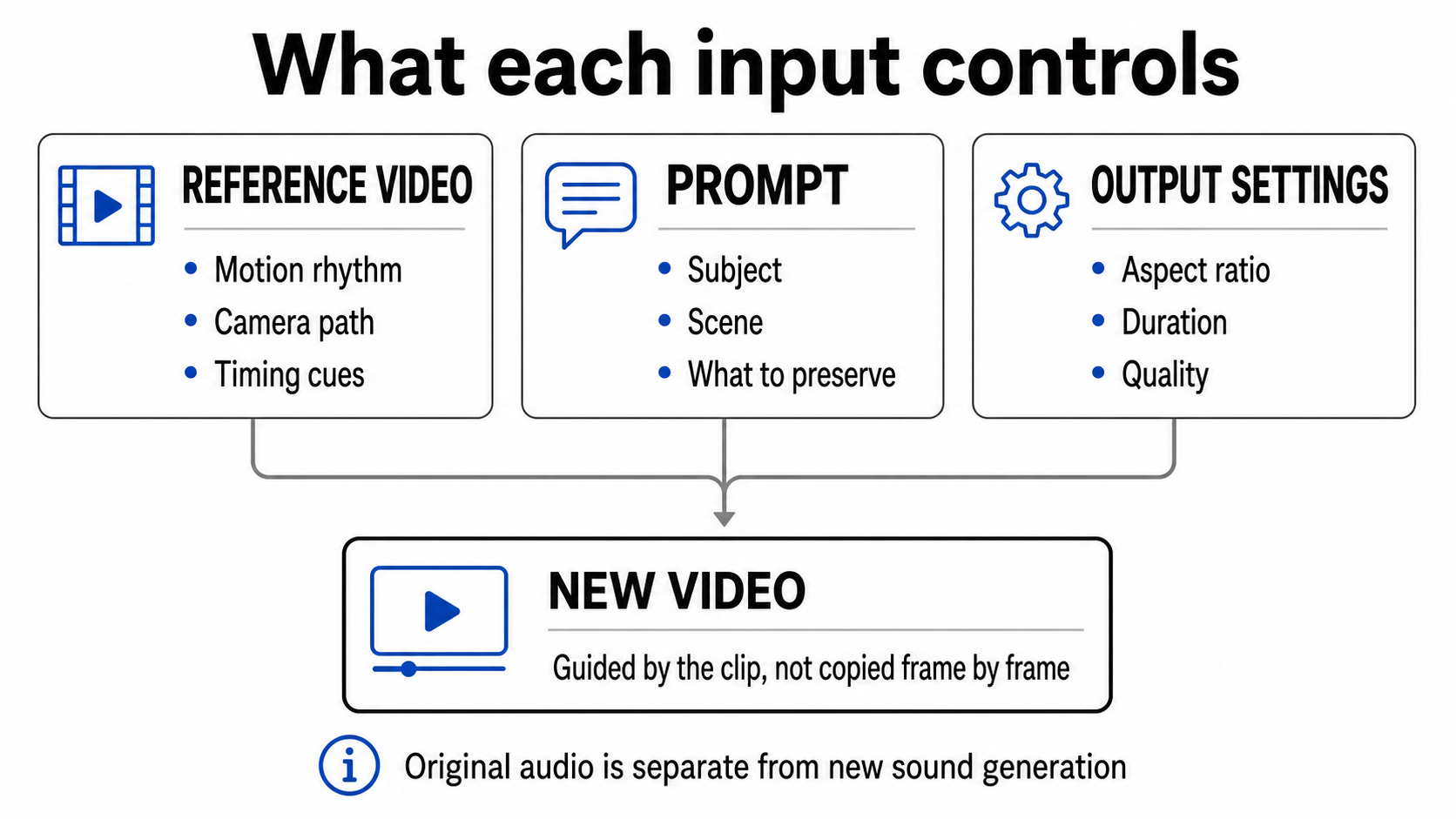
Kling O3 reference-to-video uses a short video as motion guidance for a newly generated clip. The reference can influence action timing, body movement, camera travel, and the overall rhythm of the shot, but it is not a frame-by-frame copy. Your prompt still defines the subject, scene, and details that should remain stable. Output settings control the final aspect ratio, duration, and quality.
On KlingVideo, open Video to Video, choose Kling O3, upload an MP4 or MOV reference clip, write a focused prompt, and set the output. Use a clip between 3 and 10 seconds and under 200 MB. A single clear action with a visible subject is easier to follow than rapid cuts or crowded motion.
Reference-video mode keeps the source clip's original audio by default. That is separate from generating new sound effects, which is unavailable when a reference video is supplied. The current KlingVideo form does not expose a separate O3 original-sound switch, so check the output audio before treating it as final.
What Kling O3 reference-to-video actually does
Reference-to-video is best understood as guided generation. Kling O3 reads useful motion and camera cues from the uploaded clip, then creates a new video under the constraints of your prompt and output settings. This makes it useful when movement is easier to show than describe: a hand gesture, a turn, a short dance phrase, a product reveal, or a camera push around a subject.
It does not promise an identical recreation. Small details can change, limbs can drift, the camera can simplify a complicated path, and background objects may be rebuilt. Treat the reference as a motion plan, not as footage that the model edits directly.
Reference video
The clip provides observable movement. O3 can use its action rhythm, timing cues, and camera path as guidance. If the subject leaves the frame, becomes heavily occluded, or moves too quickly to read, the model receives weaker guidance.
Prompt
The prompt tells the model what it should generate. Name the subject, scene, main action, camera behavior, and details that matter most. If you want to preserve a color, wardrobe item, product shape, or background feature, state it plainly. Do not ask for a second action that fights the reference clip.
Output settings
Aspect ratio, duration, and quality describe the result you want delivered. They do not repair an unclear reference clip. If the source action is hard to read, increasing quality will not make the movement more coherent.
Choose a reference clip O3 can read
The strongest reference is not necessarily the most cinematic one. It is the clip that makes the intended movement obvious.
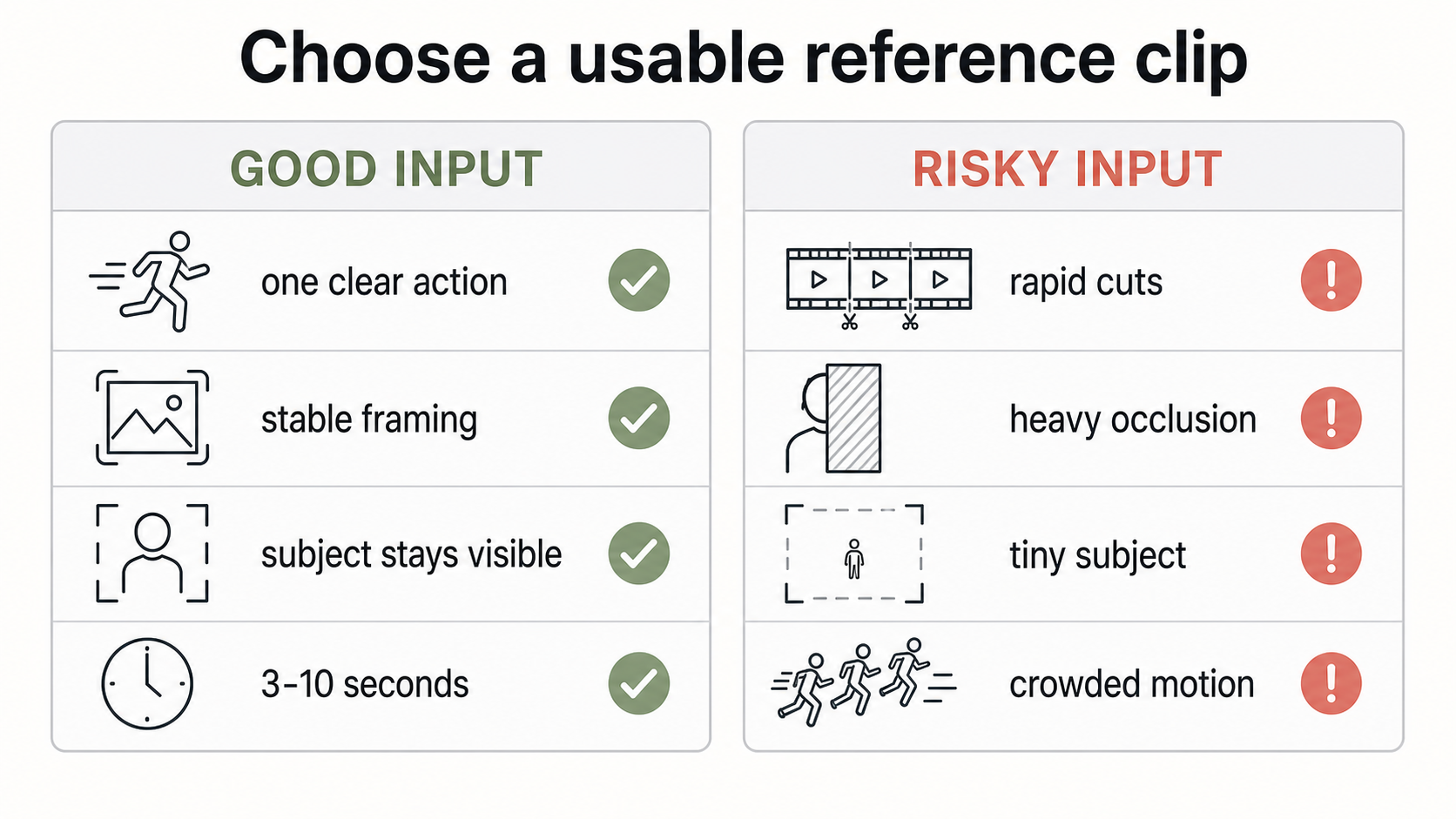
Use this checklist before uploading:
- File and length: MP4 or MOV, no larger than 200 MB, and 3 to 10 seconds long.
- One main action: Prefer one gesture or movement phrase over several unrelated actions.
- Visible subject: Keep the moving subject large enough to read and visible through most of the clip.
- Stable continuity: Avoid jump cuts, sudden scene changes, and heavy occlusion.
- Useful camera motion: A simple pan, push, orbit, or locked camera is easier to interpret than a chaotic handheld move.
- Matching intent: Choose a clip whose motion already resembles the result you want. A longer prompt cannot fully reverse conflicting motion.
Trim away idle seconds at the beginning and end. If the useful action lasts four seconds, upload those four seconds instead of wrapping them in a ten-second clip with a long pause.
How to use reference video in Kling AI on KlingVideo
1. Open the Video-to-Video workspace
Go to KlingVideo Video to Video. Select Kling O3 as the model. This matters because reference handling varies between models.
2. Upload the reference clip
Add an MP4 or MOV file between 3 and 10 seconds. If the upload is rejected, check the container, file size, and duration before changing anything else.
3. Write a prompt that works with the clip
Describe what the new video should contain, then connect that description to the motion already visible in the reference. A practical order is:
- Subject and appearance.
- Main action.
- Scene and lighting.
- Camera behavior.
- Details that must stay stable.
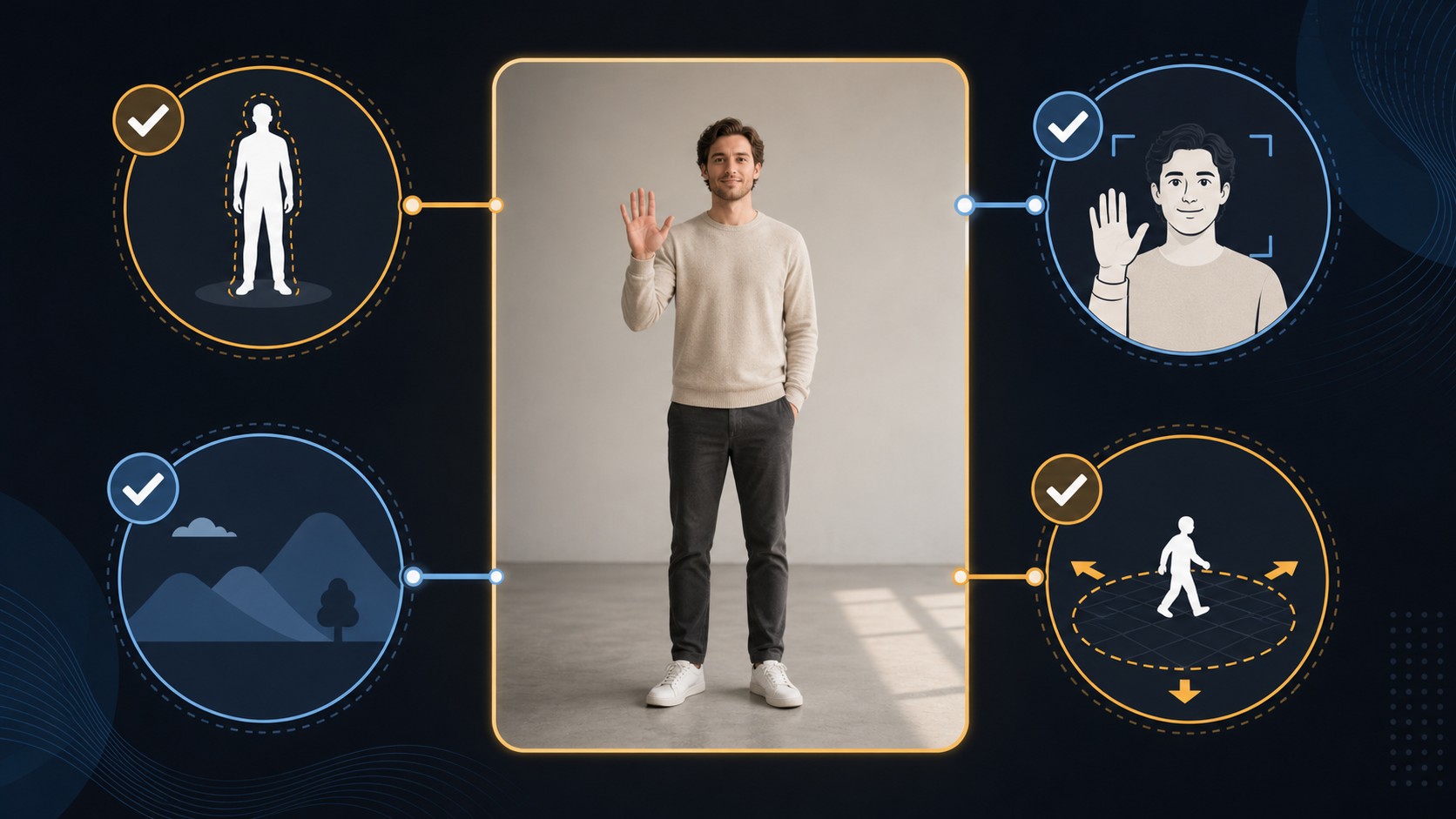
For example, if the reference shows a person raising one hand and turning toward the camera, keep that movement as the core action. Changing it to a sprint, a spin, and a jump creates competing instructions.
4. Set aspect ratio, duration, and quality
Choose 16:9, 9:16, or 1:1 for the delivery format. Kling O3 reference-to-video supports 720p and 1080p. Pick a duration that fits the reference action instead of stretching a short gesture into a much longer sequence.
5. Generate and review the result
Compare the output with the reference in four passes:
- Did the main action and timing carry over?
- Did the subject remain recognizable and anatomically coherent?
- Did the camera follow the intended path?
- Is the audio appropriate for the final use?
Reviewing motion, identity, camera, and audio separately makes it easier to decide whether to change the clip or the prompt.
Keep original sound: what the setting means
Original audio and generated sound are two different controls in the underlying O3 workflow.
- Keep original sound determines whether audio already present in the reference clip is carried into the output. The O3 reference endpoint defaults this behavior to true.
- Sound generation asks the model to create new sound effects. When a reference video is used, this option is not supported and is turned off.
The current KlingVideo O3 form does not show an independent original-sound toggle. In practical terms, assume the uploaded clip's audio may be retained. If you need a silent delivery, remove or mute the source audio before upload, or mute the generated result in your editing workflow after checking it.
Do not infer that a visible Sound control for another mode changes this behavior. Model modes can expose different inputs even when they share the same page.
Kling AI reference video not working: a useful order of checks
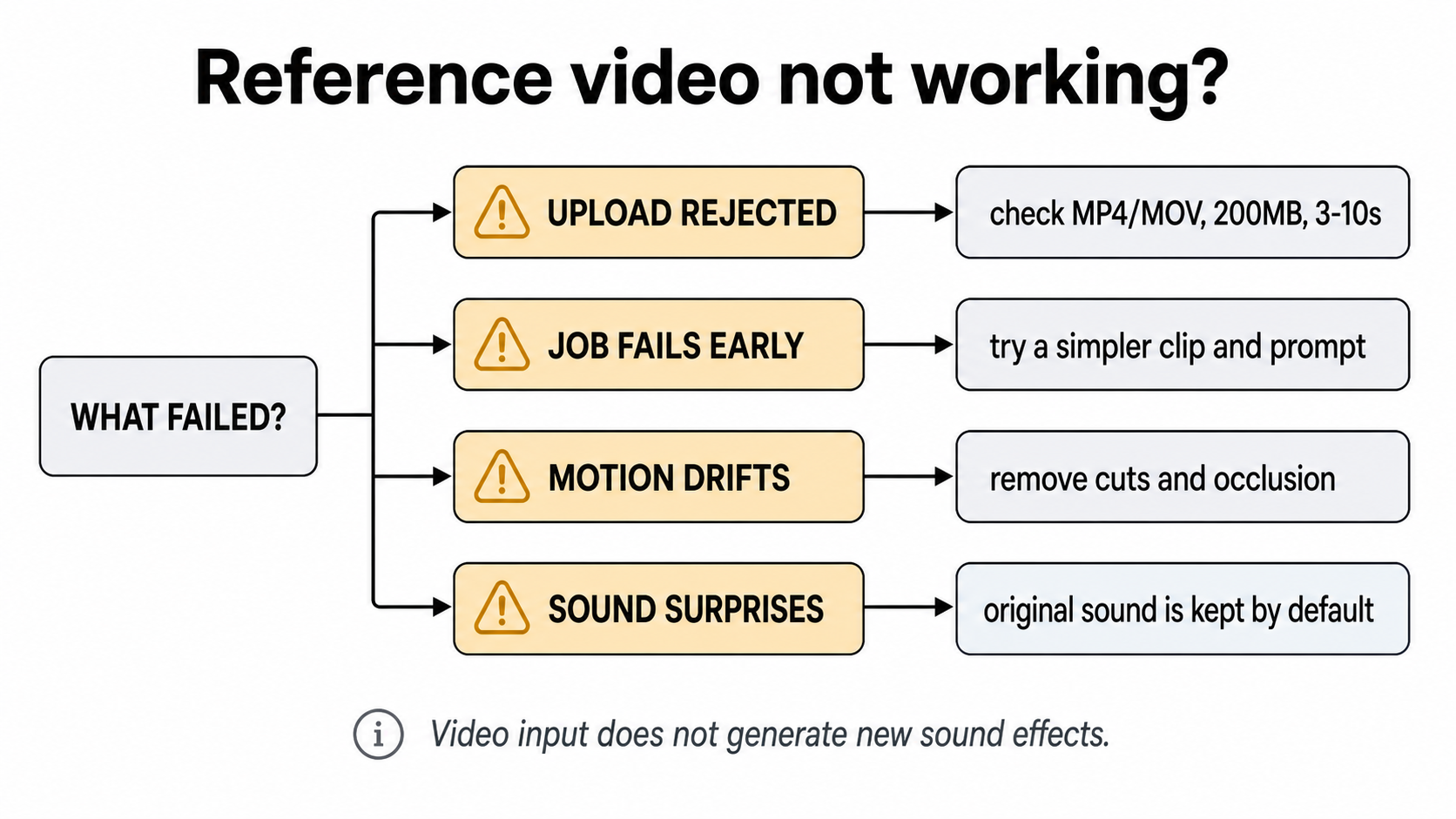
Start with the earliest failure point. Upload errors, generation failures, motion drift, and unexpected audio have different causes.
| Symptom | Likely cause | What to check | Next move |
|---|---|---|---|
| Upload is rejected | Unsupported container, oversized file, or invalid duration | Confirm MP4/MOV, 200 MB or less, and 3 to 10 seconds | Re-export or trim the clip |
| Generation fails early | The file uploaded but could not be processed cleanly | Play the full file locally and check that its duration is readable | Re-encode to a standard MP4 and try the same prompt |
| Motion is weak or drifts | Action is small, occluded, crowded, or interrupted by cuts | Watch the clip without audio and identify the one action a viewer would notice first | Crop or replace the reference before rewriting the prompt |
| Subject appearance changes | Prompt is underspecified or asks for too many changes | Check whether identity, clothing, color, and scene are stated clearly | Keep the motion, simplify the scene, and name critical visual anchors |
| Camera movement is wrong | The reference contains conflicting camera and subject motion | Separate camera instructions from subject action | Use a steadier clip or remove an unnecessary camera request |
| Output contains source audio | Original sound is kept by default | Listen to the uploaded clip and the result | Mute the source before upload when silence is required |
| No new effects are generated | Reference mode does not support new sound generation | Confirm that a video reference is attached | Add audio later in an editor if the project needs designed sound |
Change one variable per retry. If you replace the reference, rewrite the prompt, change duration, and switch aspect ratio together, a better result will not tell you which fix mattered.
A reproducible reference-video workflow
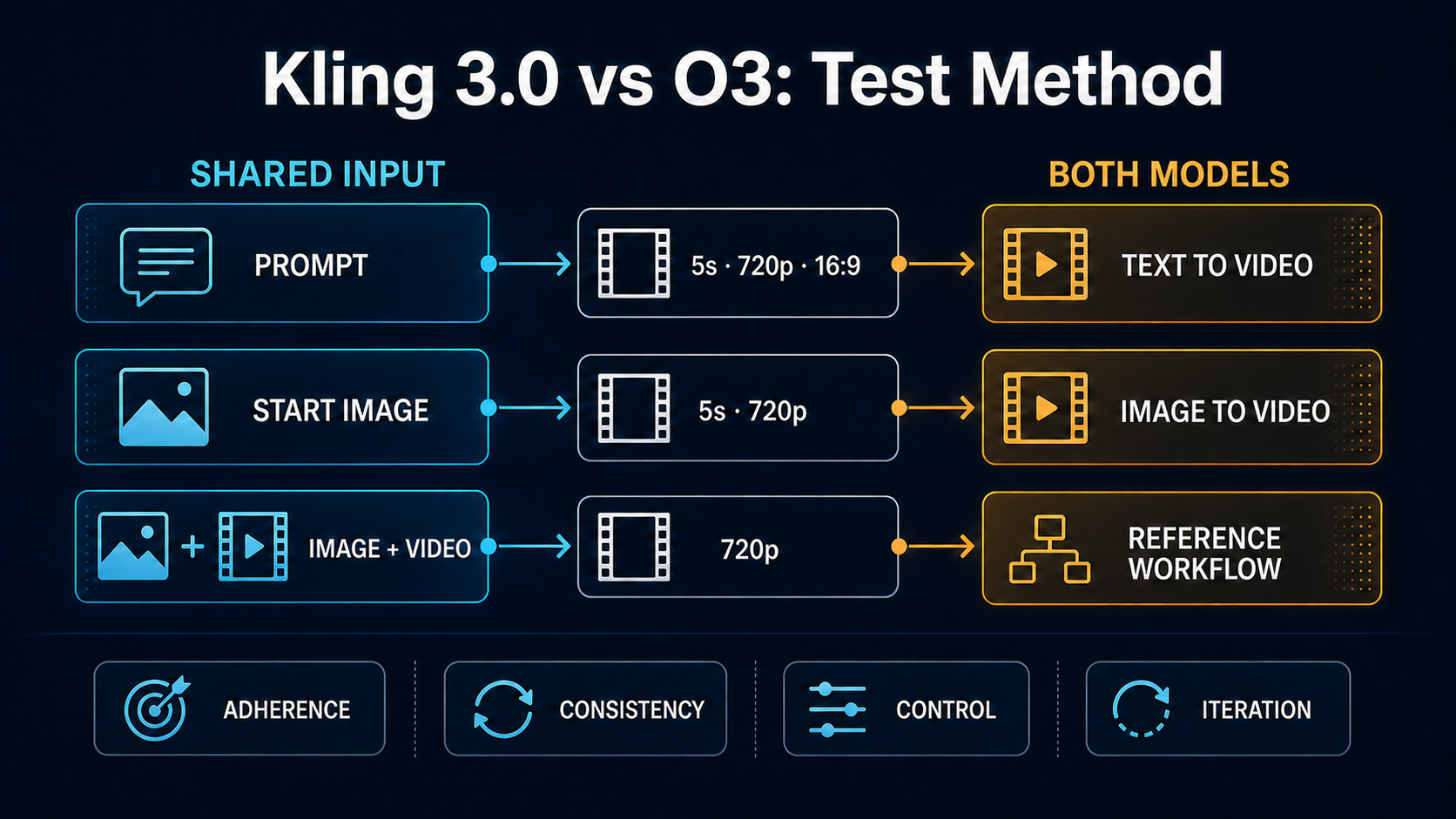
On August 4, 2026, we compared two reference-driven Kling workflows using the same cat subject and the same five-second motion clip. The reference showed an upright paw gesture in a bright room. Kling O3 reference-to-video completed at 720p and carried over the broad gesture rhythm and room composition.
The result also showed the limits of the method. Facial and coat details changed, the paws were not exact copies of the original motion, and parts of the sofa were rebuilt. That pattern is consistent with feature-guided generation: the model used the reference as guidance, but it did not edit or reproduce the source footage frame by frame.
You can read the full setup and observations in Kling 3.0 vs O3: a reference workflow test. The comparison is useful because both attempts started from the same materials. It does not establish a success rate, and a single completed example cannot predict every subject or movement.
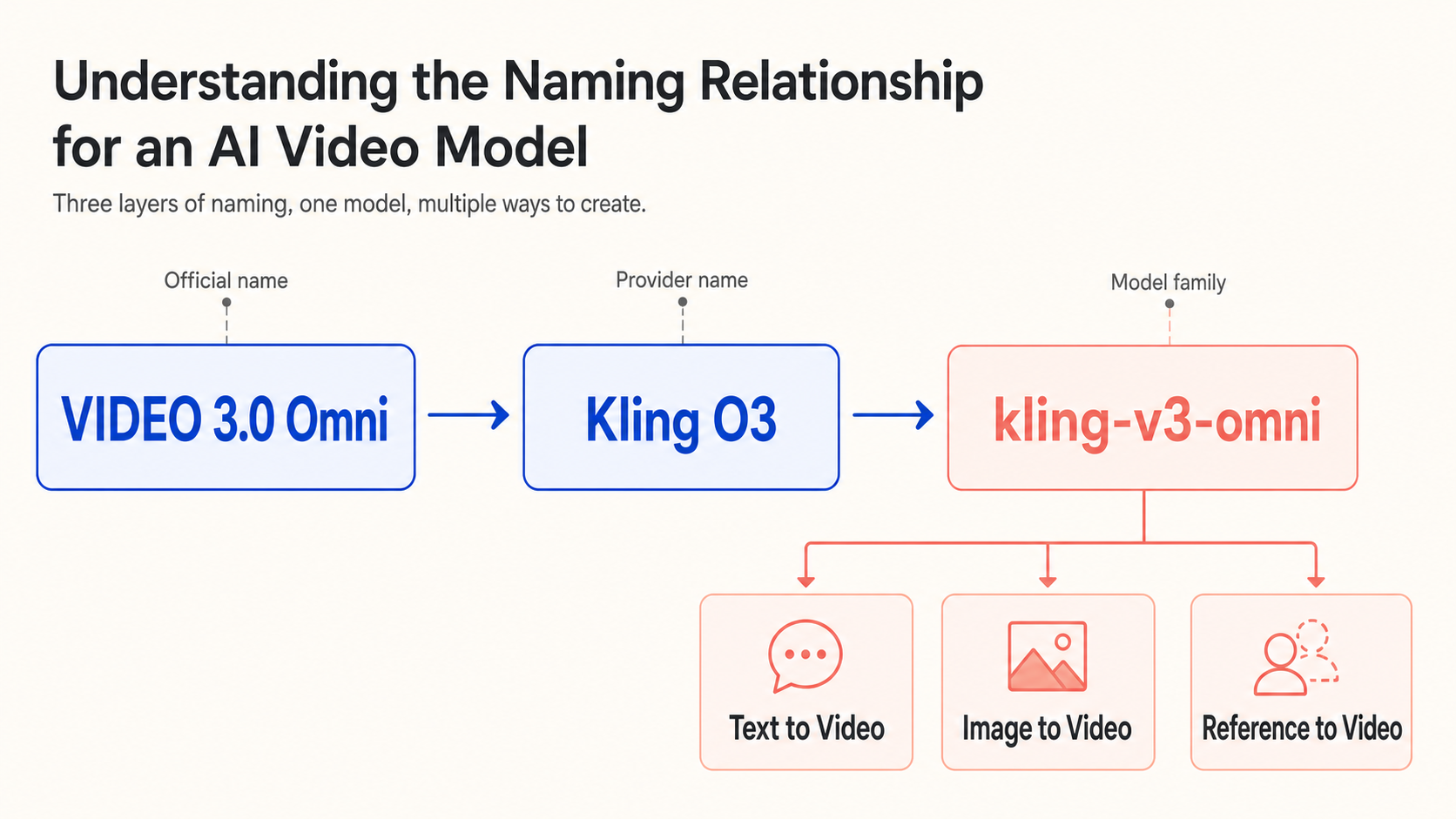
For a wider view of the model family, see Kling O3 and VIDEO 3.0 Omni features. If your real goal is strict character motion transfer from an image, compare the controls and known failure points in Kling AI Motion Control fixes before choosing a mode.
When reference-to-video is a good fit
Use it when:
- The desired motion is easier to demonstrate than describe.
- You can isolate one short, readable action.
- The result may reinterpret small visual details.
- You want the rhythm or camera path of a clip, not a literal edit of that clip.
Choose a different workflow when exact frame continuity, exact lip synchronization, or precise preservation of every source detail is mandatory. In those cases, a conventional editor, compositing workflow, or a more specialized control mode may be a better match.
FAQ
Does Kling O3 copy the reference video frame by frame?
No. It uses the clip as guidance for motion, timing, and camera behavior while generating a new video. Details can change.
How long can a reference video be?
For the current O3 reference workflow, use a clip between 3 and 10 seconds. The file should be MP4 or MOV and no larger than 200 MB.
Can Kling O3 keep the original sound?
Yes. The underlying reference workflow keeps source audio by default. The current KlingVideo form does not expose a separate O3 switch for it, so review the audio in the result.
Can O3 generate new sound effects from a reference video?
No. New sound generation is unavailable when a reference video is attached. Keeping existing audio is a separate behavior.
Why does my subject look different even when the motion is correct?
The reference clip guides movement rather than locking every visual detail. State the subject and critical appearance anchors clearly, simplify competing scene changes, and use a reference with an unobstructed subject.
Should I rewrite the prompt or replace the reference clip?
Replace or trim the clip when the action is hard to see, cut off, or mixed with unrelated movement. Rewrite the prompt when the motion is readable but the generated subject, scene, or preservation details are wrong.
Try the workflow
Open KlingVideo Video to Video, choose Kling O3, and start with the shortest clip that clearly shows one action. Keep the first attempt simple. A clean reference and a focused prompt give you a useful baseline for the next revision.
Sources and methodology
- Kling O3 Reference-to-Video API reference, EvoLink documentation. Used to verify reference-video limits, output options, original-audio behavior, and the lack of new sound generation with video input. Accessed 2026-08-10.
- Kling VIDEO 3.0 Omni Model User Guide, official Kling AI documentation. Used for the broader multimodal reference model context. Accessed 2026-08-10.
- KlingVideo Video to Video, current product route and controls. Used to verify the Kling O3 entry, reference upload, prompt, and output settings. Checked 2026-08-10.
- Kling 3.0 vs O3 workflow test, published KlingVideo test. Used for the five-second cat-motion workflow and observed output limits. Checked 2026-08-10.
The capability limits come from current documentation and product configuration. The workflow observations come from one matched comparison, not a statistical benchmark. Last verified: 2026-08-10.