Quick Answer: Kling AI calls the official model VIDEO 3.0 Omni. EvoLink uses Kling O3 for API routes built on the
kling-v3-omnifamily. In KlingVideo, selecting Kling O3 currently sends a prompt-only job to text-to-video, a job with a start image to image-to-video, and a job with a reference video to reference-to-video. Those names describe different layers of the same workflow; they do not prove that every upstream Omni capability is available in KlingVideo.
What Kling VIDEO 3.0 Omni, Kling O3, and kling-v3-omni mean
The naming is easier to understand when each label is tied to the place where it appears.
| Label | Where you see it | What it means |
|---|---|---|
| VIDEO 3.0 Omni | Kling AI's official model guide | The official product name used by Kling AI |
| Kling O3 | KlingVideo's model selector and EvoLink documentation | A provider-facing name for Omni-based generation routes |
kling-v3-omni |
EvoLink's route documentation | The underlying model family named in the provider documentation |
kling-o3-text-to-video |
EvoLink API and KlingVideo routing | The prompt-only route |
kling-o3-image-to-video |
EvoLink API and KlingVideo routing | The route used when a start image is supplied |
kling-o3-reference-to-video |
EvoLink API and KlingVideo routing | The route used when a reference video is supplied |
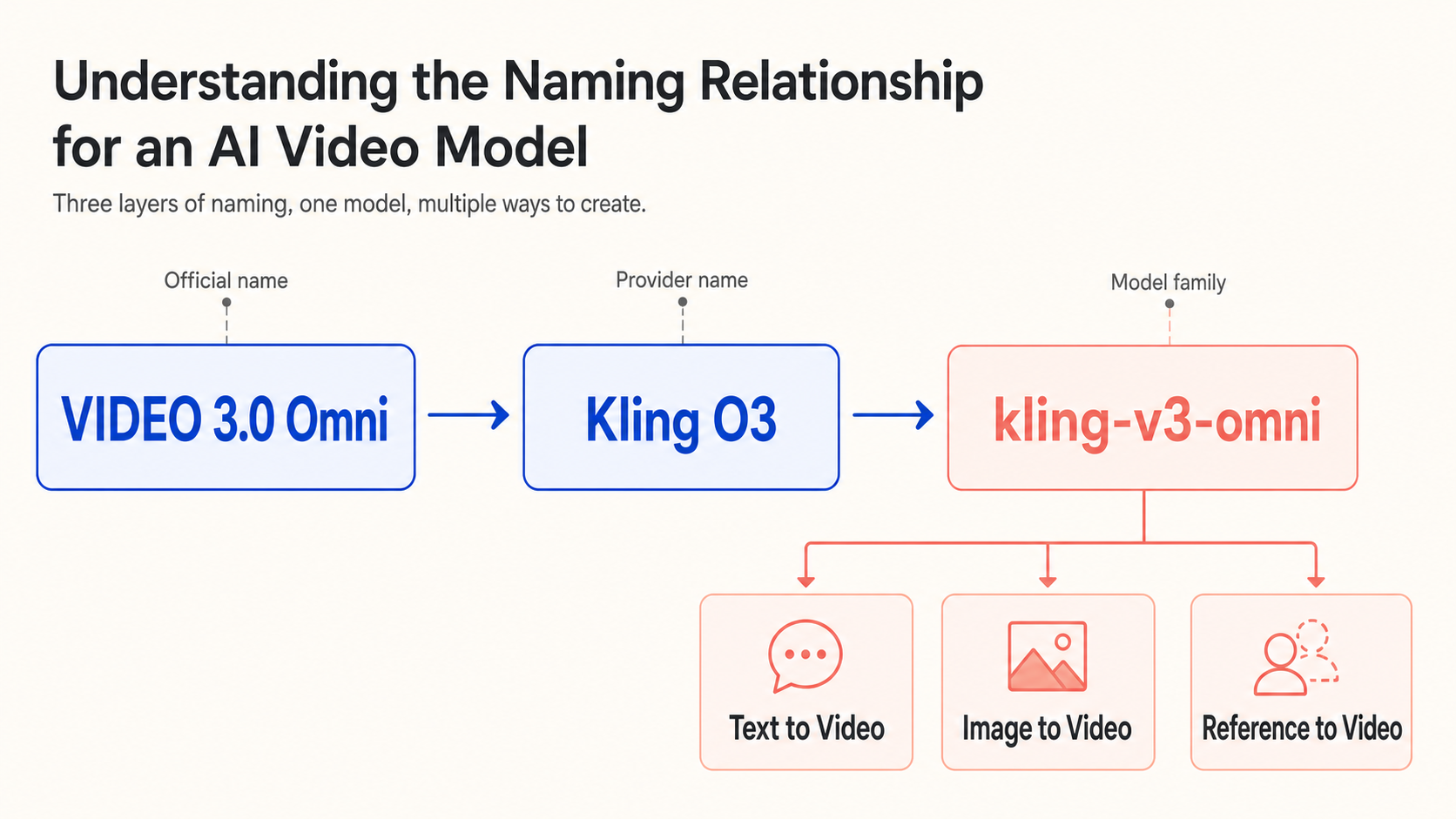
One official model name, one provider-facing label, and three input-specific routes.
The distinction keeps two common assumptions out of the workflow. A user-interface label or API route is not necessarily the official model name. And a broad upstream feature list does not mean every item is already present in a particular product.
Kling AI's guide documents the official VIDEO 3.0 Omni model. EvoLink's O3 documentation names kling-v3-omni as the model behind its O3 routes. KlingVideo exposes the friendly label “Kling O3,” then chooses one of those routes from the input you provide.
Which Kling O3 workflows are available in KlingVideo
As of July 23, 2026, KlingVideo exposes three O3 paths. The route changes according to the input attached to the job.
| Input in KlingVideo | O3 route selected | Current behavior to know |
|---|---|---|
| Prompt only | kling-o3-text-to-video |
Uses the text prompt to define the shot; generated sound can be turned on or off |
| Prompt and start image | kling-o3-image-to-video |
The image anchors the opening composition; an optional end image can also be supplied |
| Prompt and reference video | kling-o3-reference-to-video |
The video provides the reference; generated sound is not available in this mode |
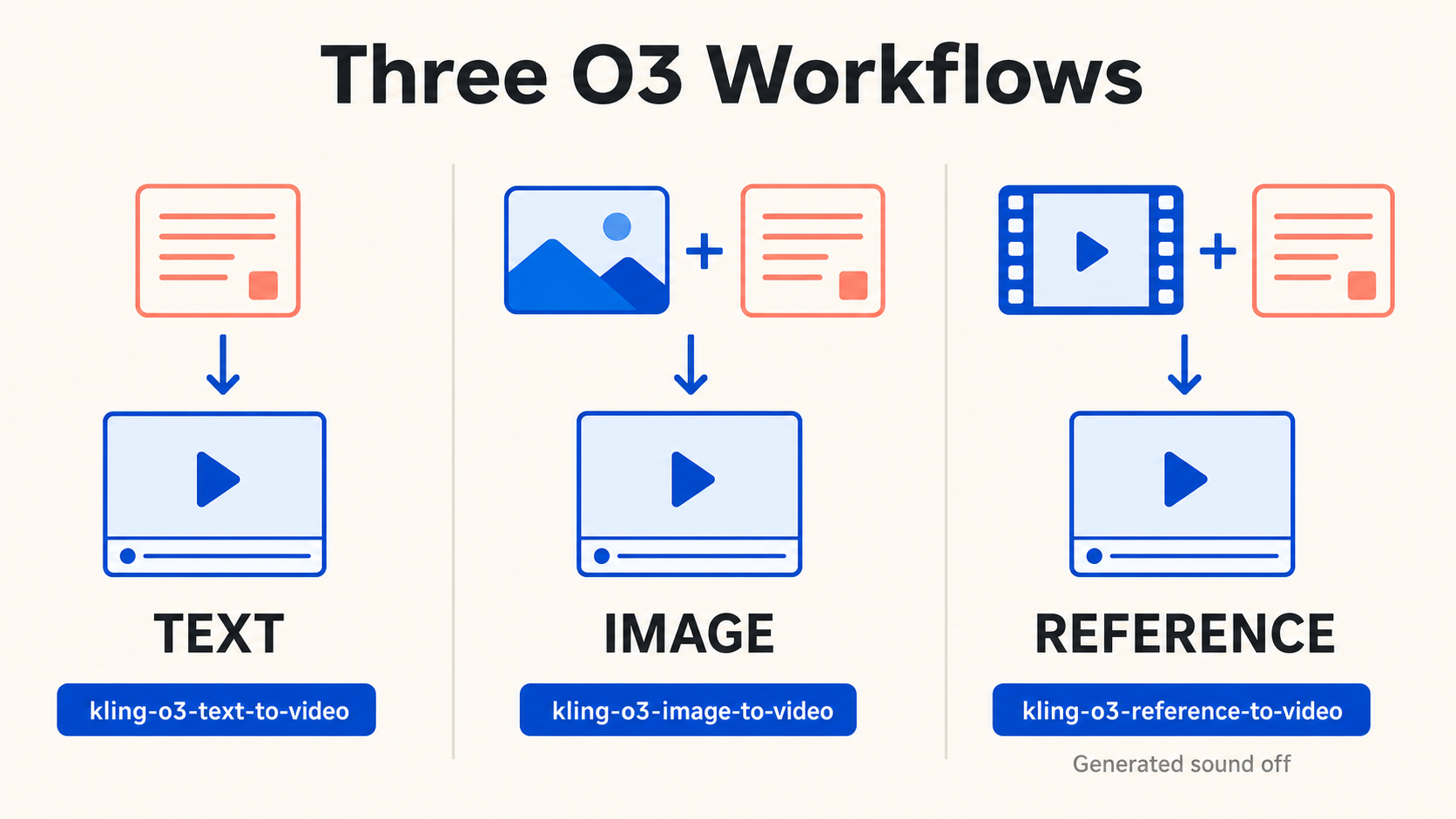
The attached input—not the shared O3 label—decides which route handles the job.
The current O3 controls show three aspect ratios—16:9, 9:16, and 1:1—plus durations from 4 to 15 seconds and 720p or 1080p output. Sound can be switched on or off for text and image jobs. When a reference video is present, KlingVideo removes the generated-sound option because the provider route does not support it.
For reference video, the current KlingVideo validator accepts MP4 or MOV files, with a maximum size of 200 MB and a duration from 3 to 10 seconds. These are product-level constraints, so use the controls shown in the generator as the source of truth if they change later.
The upstream Omni family may document other capabilities. That does not make them available here. KlingVideo's current O3 interface does not expose video editing or element-reference controls, so this guide does not treat those workflows as supported.
When to choose Kling O3 and when to choose Kling 3.0
O3 is not automatically the “better” option. Pick the workflow that matches the input and route you need.
| Your situation | Best starting point | Why |
|---|---|---|
| You want to test the current Omni-based route from a text prompt | Kling O3 in text-to-video | It sends prompt-only O3 jobs to the text route |
| You want to animate a still image with the current Omni-based route | Kling O3 in image-to-video | A start image switches the job to the O3 image route |
| You want a video to provide reference information | Kling O3 in video-to-video | A reference video switches the job to the O3 reference route |
| You want the standard Kling 3.0 text or image route | Kling 3.0 | It keeps the job on the standard 3.0 route |
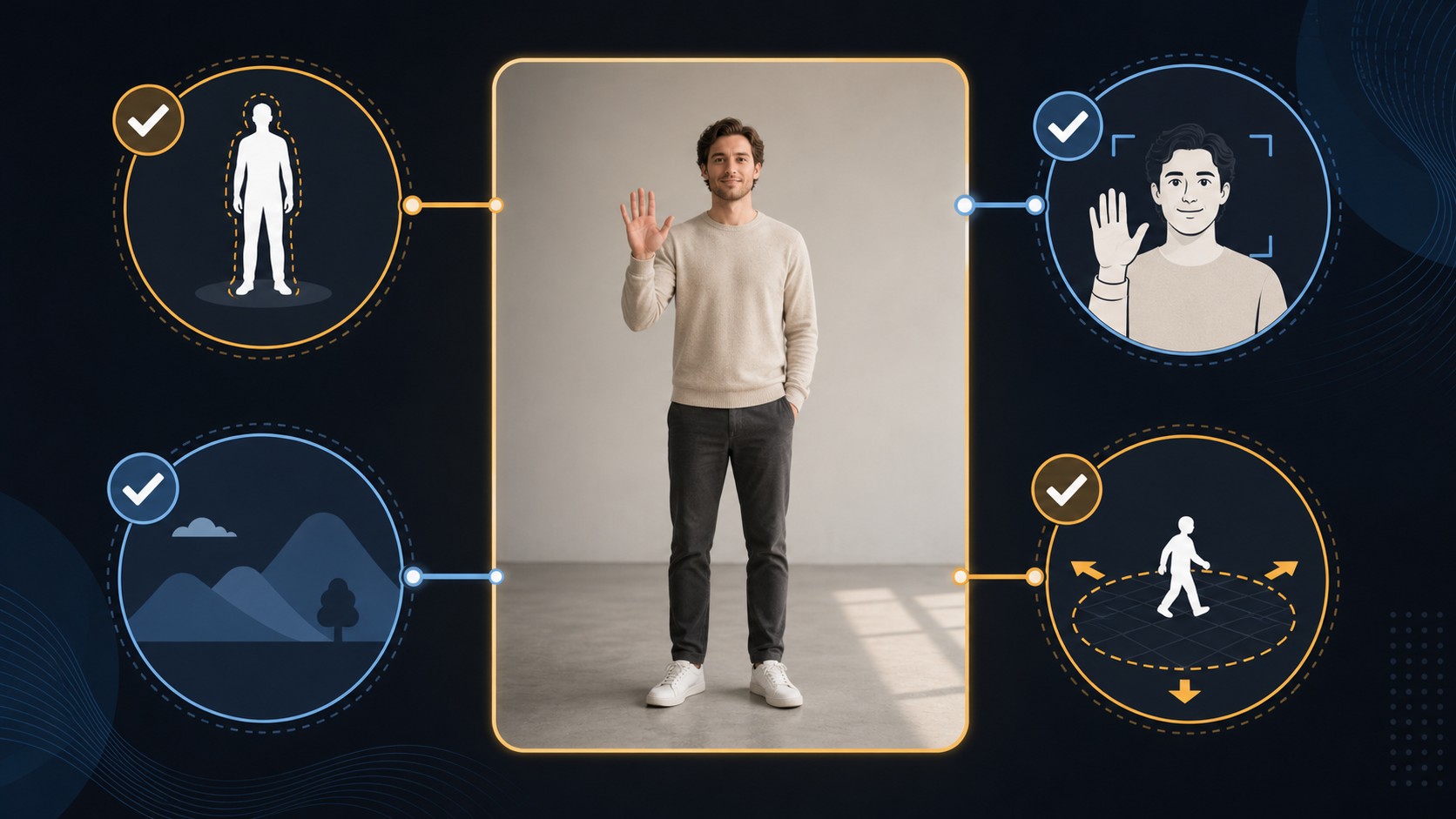
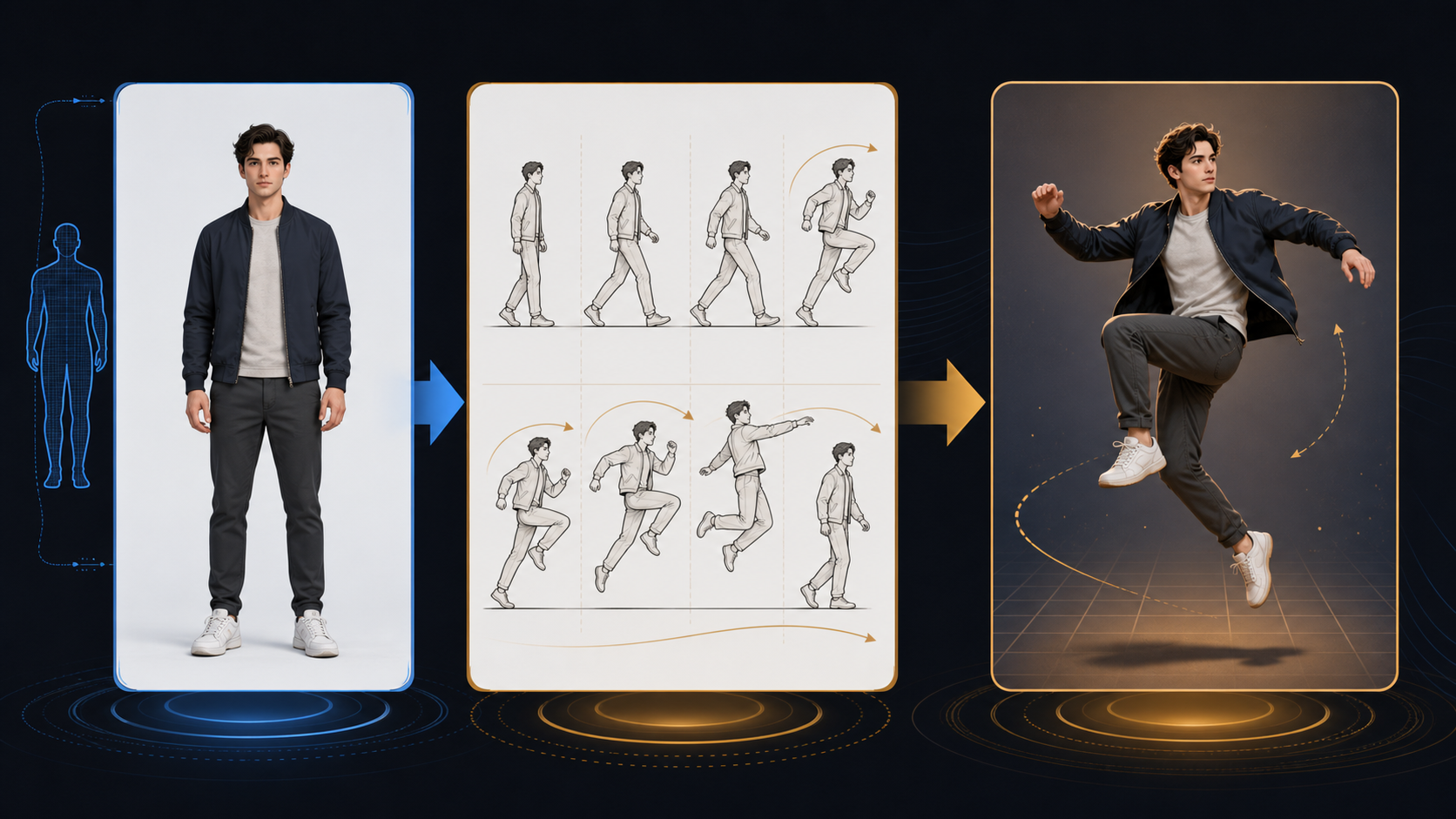
| You have a character image and a performance video for explicit motion transfer | Kling 3.0 Motion Control | That is a separate workflow with its own input contract |
| You need upstream video-editing or element-reference controls | Do not assume O3 supports it here | Those controls are not exposed in the current KlingVideo interface |
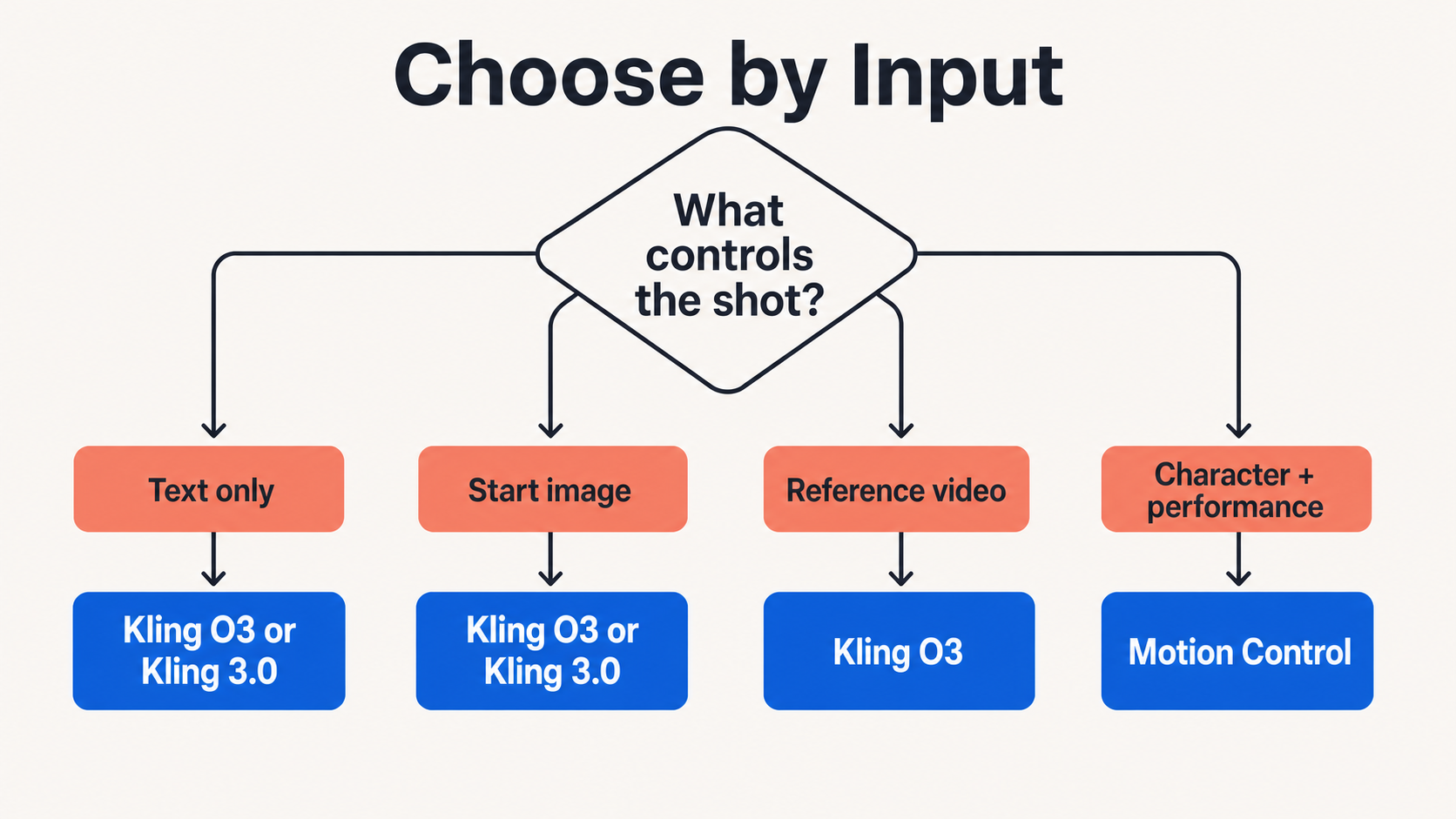
Choose by the material that should control the shot; the diagram is not a quality ranking.
If you are comparing general model capabilities, read the Kling 3.0 model overview. The question here is narrower: how does the O3 name map to the routes you can actually select and use in KlingVideo today?
How to use Kling O3 step by step
1. Start from the input that should control the shot
Use text-to-video when the shot begins as an idea in words. Use image-to-video when a still image must define the appearance or opening frame. Use video-to-video when a reference clip should shape the result.
Choose by input, not by a hoped-for visual style. The input determines the route.
2. Select Kling O3
Open the model selector and choose Kling O3. Check the visible inputs after the selection. A prompt-only form, an image input, and a reference-video input lead to different O3 routes even though the model label stays the same.
3. Prepare one clear shot
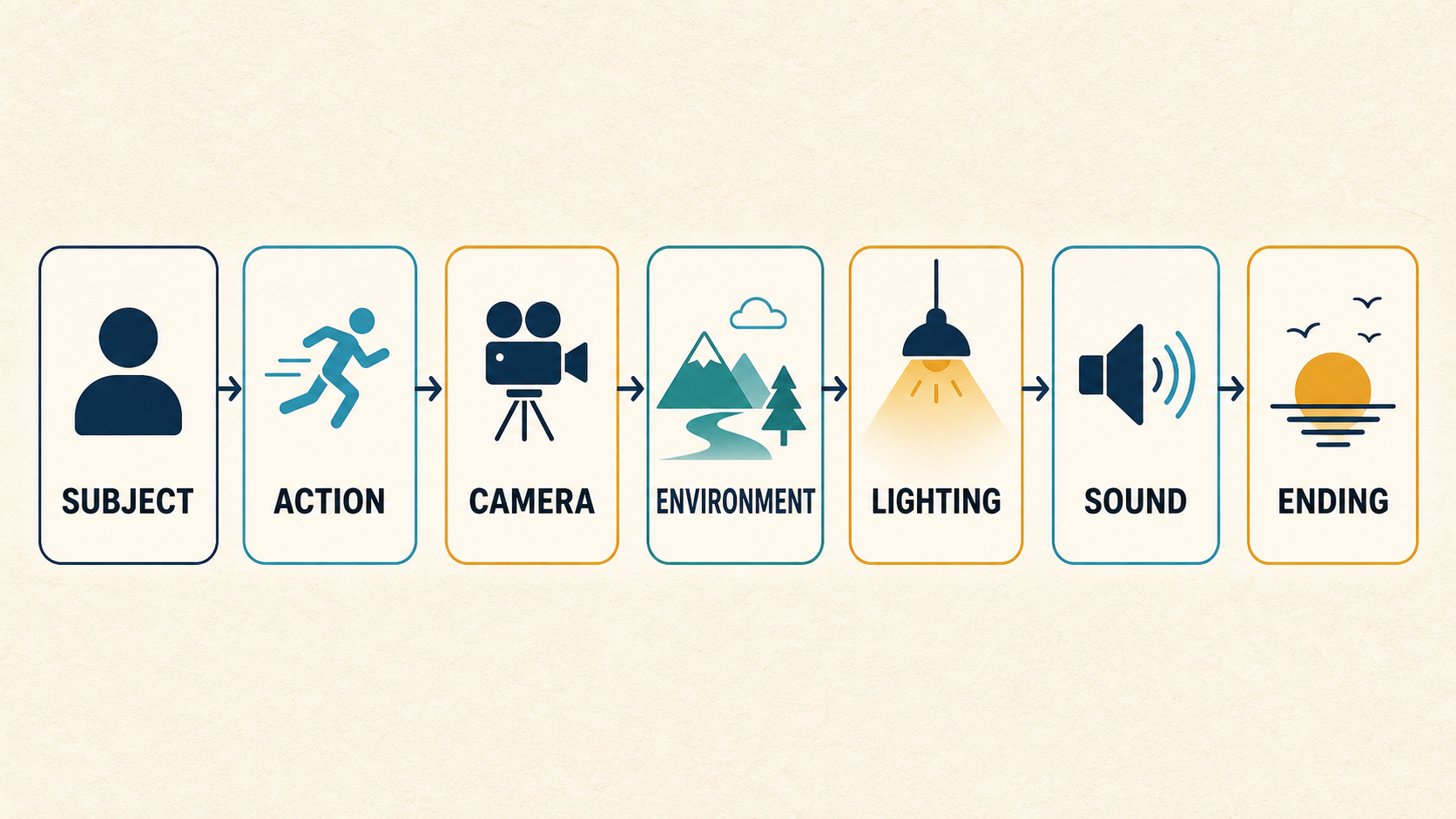
Write a prompt for one subject, one main action, one camera behavior, and one ending. For an image job, let the image control appearance and use the prompt for movement. For a reference-video job, let the clip carry the reference information and keep the prompt focused on the intended scene.
The Kling AI prompt guide provides a reusable prompt formula. If a still image is your starting point, the image-to-video checklist covers source-image preparation and motion planning.
4. Set only the controls that matter
Choose the aspect ratio for the destination, a duration long enough for one action, and the resolution you need for the test. Leave sound off when it is not part of the experiment. With a reference video, decide whether the original audio should be kept; generated sound is unavailable on that route.
5. Generate and review the route-specific result
Check whether the output preserves the right control source:
- For text-to-video, did the prompt produce the subject, action, camera, and ending?
- For image-to-video, did the starting image remain recognizable while the requested motion appeared?
- For reference-to-video, did the clip provide useful reference information without conflicting with the prompt?
Change one major variable at a time. If you change the prompt, input, duration, and aspect ratio together, it becomes difficult to tell what improved or broke the result.
How to verify current O3 capabilities
Provider documentation can change faster than an interface. Use this short check before treating any O3 feature as available.
- Open the relevant public KlingVideo generator.
- Select Kling O3 in the current model selector.
- Confirm that the input you need is visible and accepted.
- Read the controls that appear for that input rather than borrowing settings from another O3 route.
- For reference video, confirm the accepted format, size, and duration before uploading.
- Treat a capability as available only when the current interface exposes it and a public workflow can be completed.
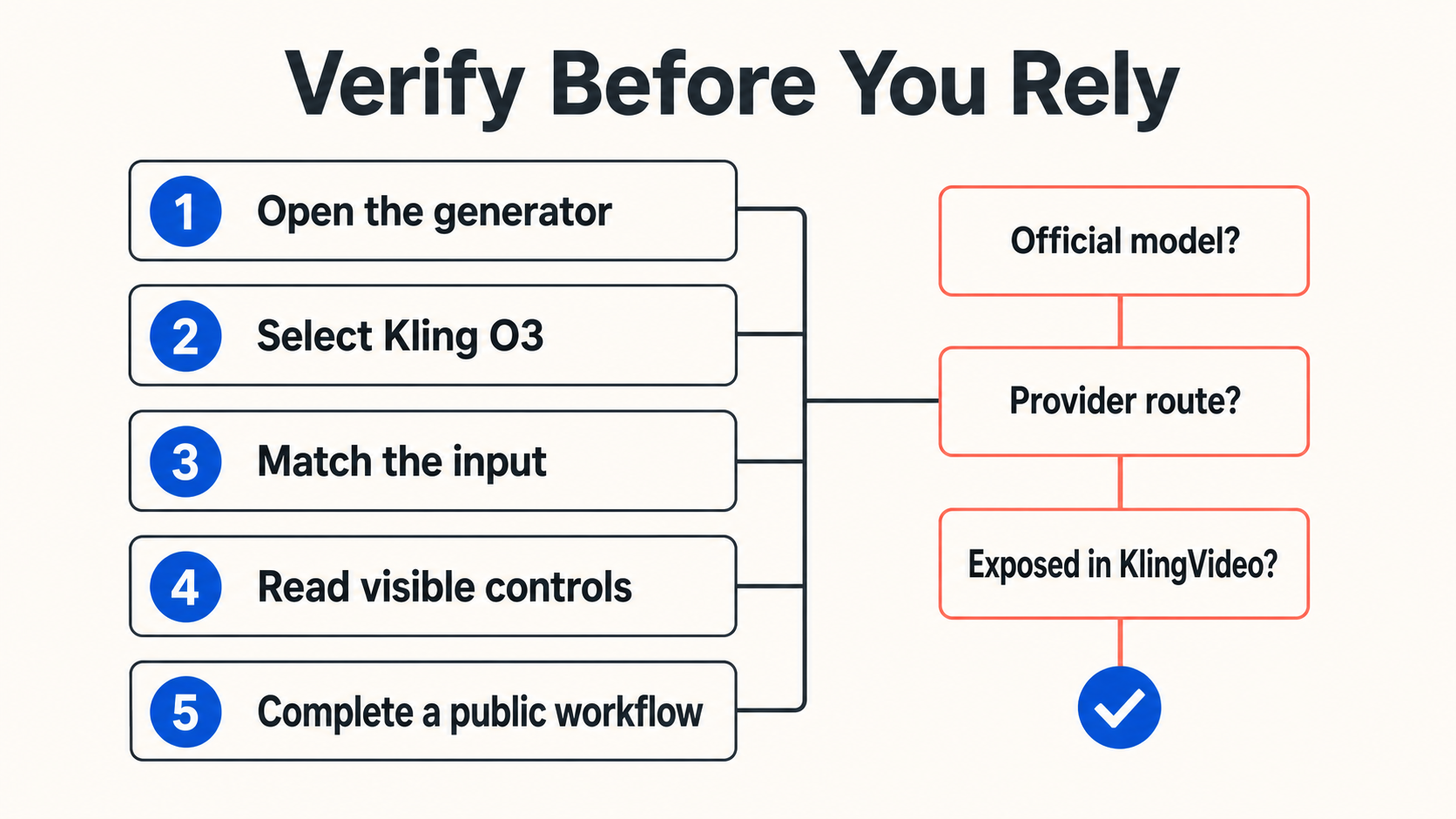
A feature is ready to rely on only after the public workflow exposes and accepts it.
A useful capability check has three separate questions:
- Does the official model family describe the capability?
- Does the provider offer a route for it?
- Does KlingVideo expose that route and its required controls now?
A “yes” to the first question does not guarantee a “yes” to the third.
Common mistakes
Treating O3 as a separate official Kling model name
In this context, VIDEO 3.0 Omni is the official Kling AI name. Kling O3 is the provider-facing and interface label used for routes based on kling-v3-omni.
Assuming every upstream Omni feature is available
The official model guide describes the wider model. This article deliberately limits availability claims to controls visible in KlingVideo at the verification date.
Expecting the same behavior from every O3 input
Prompt-only, image, and reference-video jobs do not use the same route. They also do not expose identical sound behavior or validation rules.
Choosing a mode by quality claims
The route map does not prove that O3 is always better than Kling 3.0. Use a repeatable prompt or input, compare outputs for your own task, and keep the input contract constant.
Frequently asked questions
Is Kling O3 the same as Kling VIDEO 3.0 Omni?
Kling O3 is the name EvoLink and KlingVideo use for routes based on the kling-v3-omni model family. Kling AI's official guide calls the model VIDEO 3.0 Omni. The labels refer to different naming layers, not two unrelated model families.
Which Kling O3 modes are available in KlingVideo?
KlingVideo currently exposes text-to-video, image-to-video, and reference-to-video behavior through the Kling O3 selection. The input attached to the job determines the route.
Does KlingVideo's Kling O3 support video editing?
Not in the current interface. Upstream documentation may describe a broader capability set, but KlingVideo does not currently expose O3 video-editing controls.
Can Kling O3 generate sound from a reference video?
The current reference-to-video route does not support generated sound. KlingVideo disables that option when a reference video is supplied. Original audio can be kept when the route's corresponding control is used.
Should I choose Kling O3 or Kling 3.0?
Choose O3 when you specifically want the current Omni-based text, image, or reference route. Choose Kling 3.0 for the standard text or image route. For explicit motion transfer from a performance video to a character image, use the separate Motion Control workflow.
Try the workflow that matches your input
Start with text-to-video, image-to-video, or video-to-video, then select Kling O3. Keep the first test to one controllable shot and verify the visible inputs before relying on a feature.
Sources and methodology
Naming was checked against Kling AI's official VIDEO 3.0 Omni Model User Guide. Provider naming and route mapping were checked against EvoLink's current text-to-video, image-to-video, and reference-to-video documentation. KlingVideo availability claims were verified against the public generators and current product configuration on July 23, 2026. Upstream capabilities that are not exposed in KlingVideo were excluded.