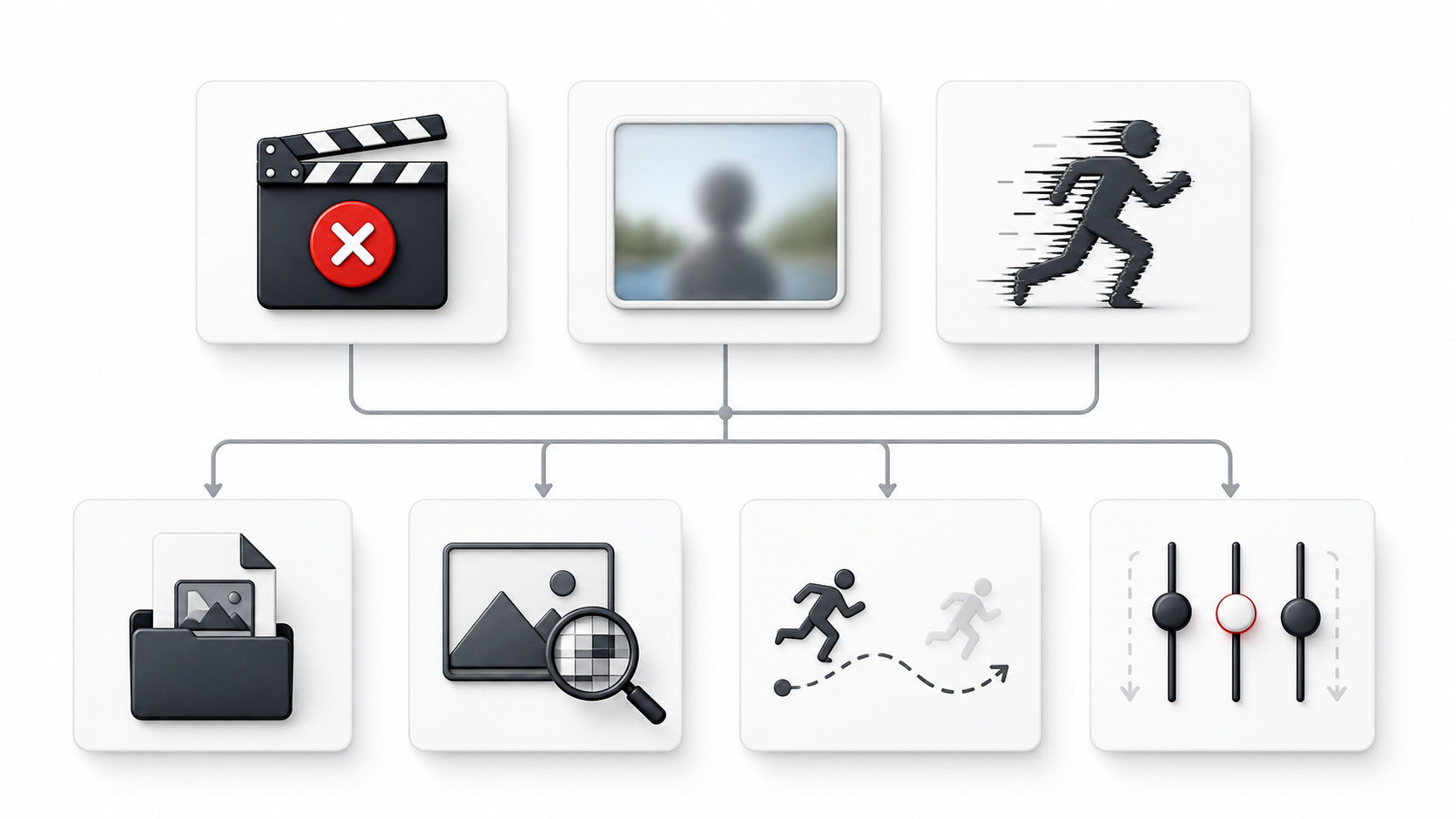
Symptom triage: find the stage that failed, then test the smallest useful change.
Quick answer
If a Kling AI video is blurry, distorted, or will not generate, find the stage where it went wrong before you rewrite the prompt. An image that never uploads, a job that fails after submission, and a finished clip with a warped face are three different problems.
Use the table below to pick the first check. Then change one thing only. That makes the next result useful evidence instead of another guess.
Kling AI troubleshooting table
| What you see | Check first | What to do next |
|---|---|---|
| The image will not upload | File type and file size | Convert it to JPG or PNG and keep it under 10 MB |
| The whole clip looks soft | Sharpness of the source, crop, and compression | Start from a cleaner image; do not expect output resolution to recreate missing detail |
| A face, hand, or limb bends | Hidden joints, overlaps, and motion complexity | Choose a clearer pose and reduce the action to one readable movement |
| The subject drifts out of frame | Space around the subject and camera direction | Recrop with movement room and keep one camera move |
| The job shows a generic failure | Whether the input passed local checks and the exact message shown | Retry the same setup once; if it repeats, change one variable |
| The picture works but audio does not | The same shot with sound disabled | Confirm the visual pass, then add one short audio cue |
| The interface names an account or concurrency limit | The wording in that message | Follow that instruction; prompt edits will not solve an account-state limit |
Find the failure stage before changing anything
1. The input fails before generation
KlingVideo's current image-to-video form accepts JPG and PNG files under 10 MB. If the image is rejected at upload, fix the format or size first. Shortening the prompt cannot repair a file validation error.
Also open the file at full size. A thumbnail can look fine while the original contains compression blocks, smeared facial detail, or a subject cropped at the joints. Those defects matter once the frame starts moving.
2. The job fails after submission
Read the exact message. A specific message about the input, account state, or concurrent work tells you what category to address. A generic “Generation failed” message does not reveal a dependable hidden cause on its own.
For a generic failure, send the same setup one more time. If it works, the problem was likely temporary. If the same failure returns, make one controlled change, such as using a simpler prompt or replacing the image. Do not simultaneously change the prompt, image, duration, resolution, and sound. You will not know which change mattered.
3. The clip finishes, but the picture is wrong
Now the input and job path have already passed. Inspect the first frame, the moment the artifact begins, and the final frame. That sequence helps separate a weak source from a motion request that becomes difficult later in the shot.
How to fix a blurry Kling AI video
A 1080p setting can give you a larger output, but it cannot rebuild detail that never existed in the source. Check the image in this order:
- Look at the eyes, mouth, fingers, hair edges, small text, and patterned fabric at 100% size.
- Check for heavy compression, sharpening halos, or a tiny subject inside a large frame.
- Make sure the crop leaves room in the direction of movement.
- Run a simpler motion test before adding camera movement or sound.
Use 720p while testing the setup and move to 1080p after the composition and motion are stable. This is a workflow choice, not a promise that 1080p will fix blur.
For a deeper source-image review, use the Kling AI image-to-video checklist. It covers pose visibility, background complexity, crop, and motion space before you spend another generation.
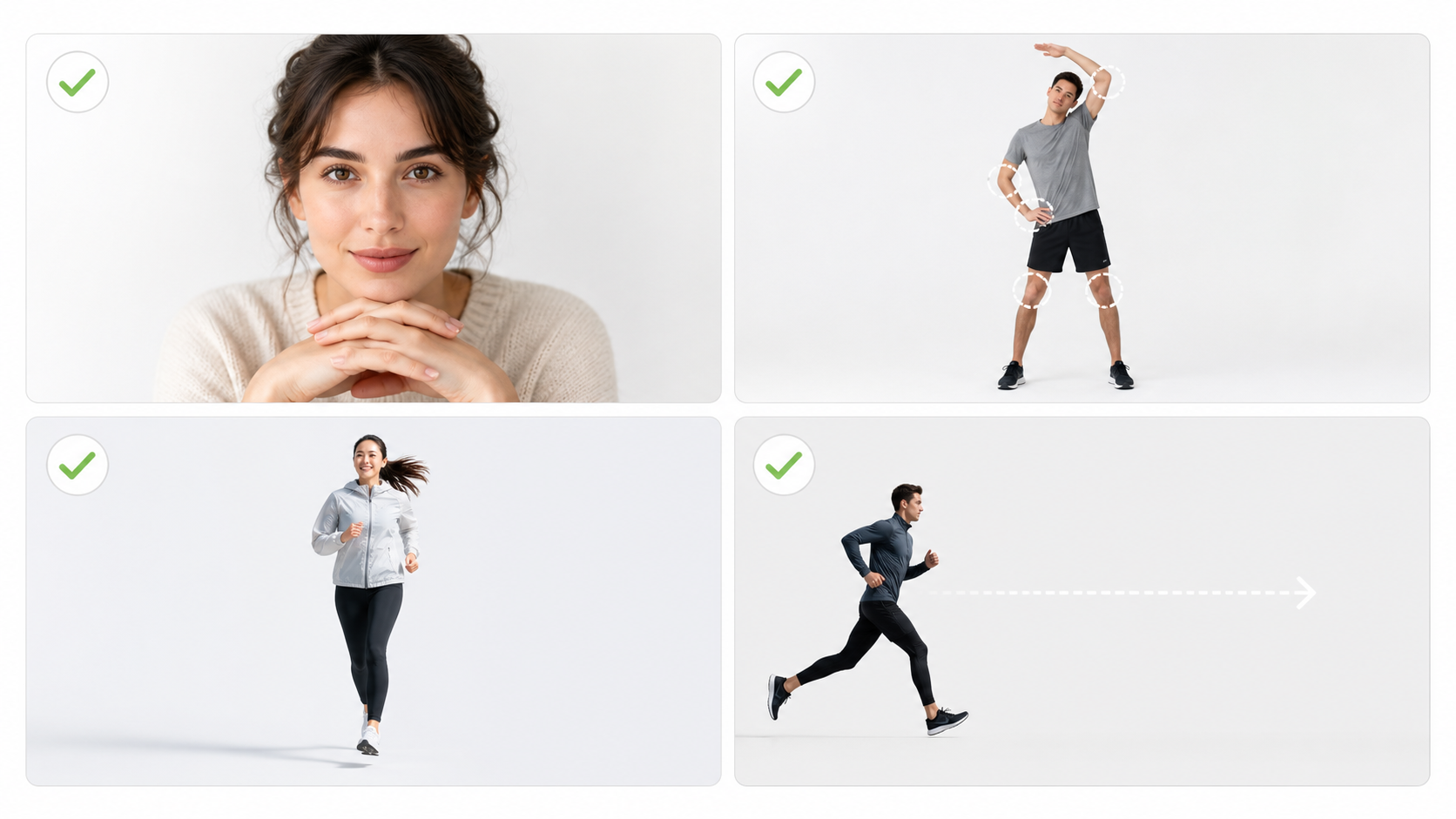
Input check: inspect source clarity, joint visibility, background complexity, and motion space.
How to reduce distorted faces, hands, and bodies
Distortion often appears where the model has to infer hidden structure while also following motion. You cannot diagnose every artifact from one frame, but these checks usually narrow the problem:
- Prefer a pose with visible hands, elbows, knees, and a clear face.
- Avoid crossed arms, hands covering the face, or several people overlapping.
- Give the subject one main action. “Turn, run, wave, spin, and look back” creates competing demands in a short clip.
- Keep the camera instruction simple. Use a slow push-in or a pan, not several directions in one shot.
- Leave space around the body so movement does not collide with the crop.
If a face changes only after a fast turn, reduce the turn before replacing the whole prompt. If the face is already soft in the source, replace the image first. These are different repairs.
Fix prompt, upload, audio, and render problems
Simplify the shot, not the idea
A practical prompt names the subject, one action, the setting, the camera behavior, and the final beat. Put the shot mechanics before mood words. If the prompt contains contradictory camera directions or a full story's worth of events, split it into separate clips.
The Kling AI prompt guide has a reusable shot structure and examples. Use it when the failure is about instruction clarity. Use this troubleshooting page when you are deciding which part of an existing setup to change.
Isolate audio from the visual test
KlingVideo currently lets you turn sound on or off. If a shot looks right but its audio is missing, noisy, or poorly timed, run the same visual setup with sound off. Once the picture is stable, turn sound back on with one clear cue, such as quiet street ambience or a single spoken line. Multiple voices, music, effects, and environmental sound in one short request are harder to assess.
Keep duration and framing within the current controls
The current Kling 3.0 workspace offers 4 to 15 seconds, 720p or 1080p, and 16:9, 9:16, or 1:1 framing. Pick the aspect ratio for the destination before you tune motion. A late switch from landscape to portrait changes the available space and can create a new crop problem.
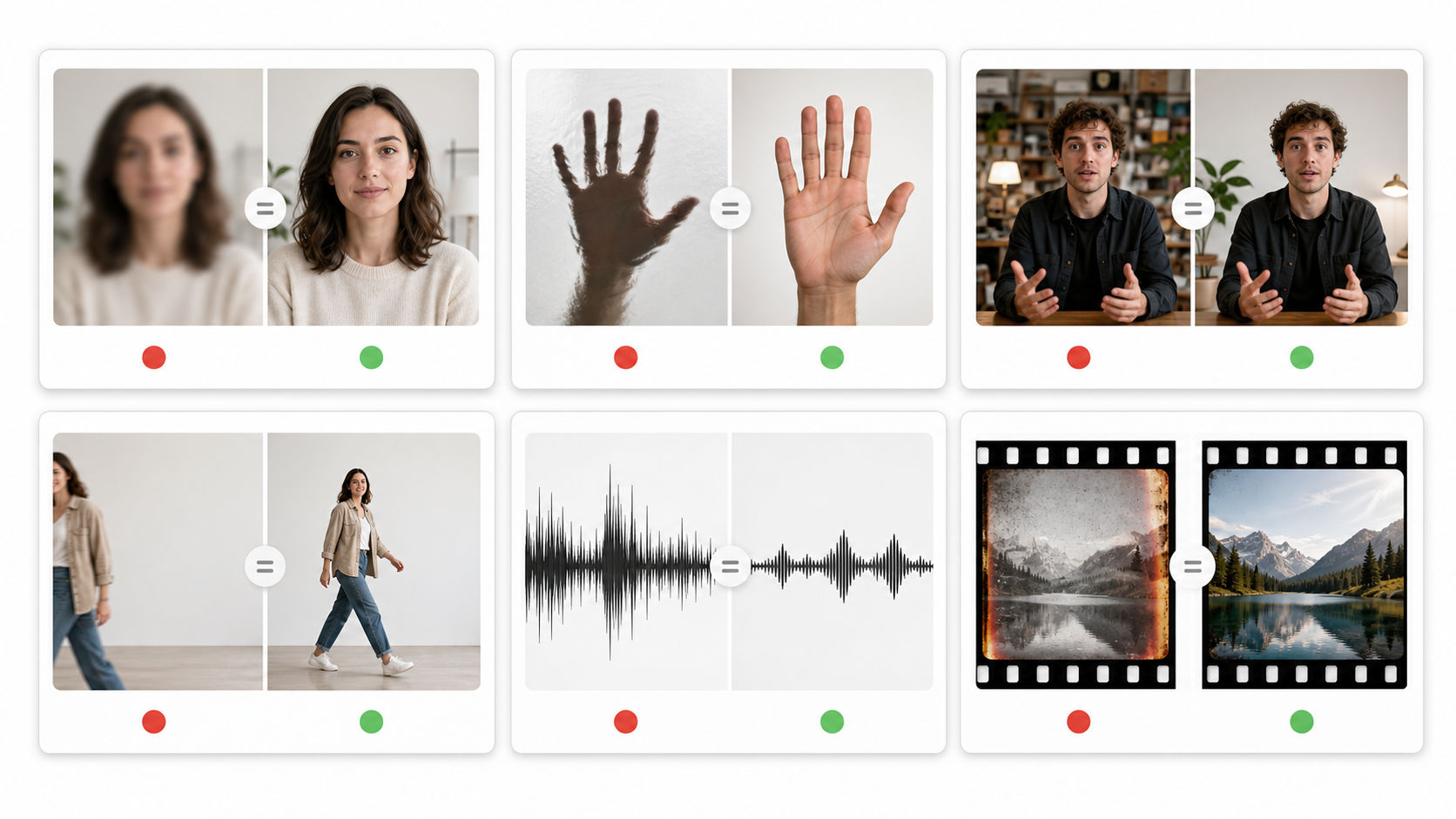
Failure matrix: match the visible symptom to a controlled, single-variable change.
When to retry, change the input, or stop
Retry unchanged when the interface shows a generic failure after a valid submission and there is no clear input error. One unchanged retry helps distinguish a temporary failure from a repeatable one.
Change one input when the same visual artifact returns. Replace a soft source, simplify an overlapping pose, reduce one motion, or remove one camera instruction. Keep the rest fixed.
Stop repeating the setup when an unchanged retry and a controlled single-variable change produce the same problem. At that point, a different source image, a simpler shot, or a split sequence is more useful than more identical attempts.
Before the next run, use this compact check:
- The source is sharp at full size.
- Important facial features and joints are visible.
- The subject has room to move.
- The prompt contains one main action and one camera direction.
- The aspect ratio matches the destination.
- Sound is isolated if audio is the uncertain part.
- Only one variable changed since the last test.
Frequently asked questions
Why is my Kling AI video blurry even at 1080p?
Output resolution and source detail are not the same thing. If the source is small, compressed, soft, or tightly cropped, 1080p cannot reliably restore the missing facial or texture information. Replace or recrop the source, then test motion at 720p before the final 1080p run.
Why does Kling AI distort faces or hands?
The risk rises when important features are hidden, limbs overlap, motion is fast, or the shot asks for several actions at once. Use a clearer pose, one main action, and a simpler camera move. Treat these as inspection priorities, not a guaranteed diagnosis.
What should I do when Kling AI generation fails?
Separate a local validation error from a failure after submission. Fix explicit file or input errors directly. For a generic failure, retry the same setup once. If it repeats, change one variable and keep the rest fixed.
Should I change the prompt or the image first?
Change the image first when the source is already soft, cropped through joints, crowded, or heavily occluded. Change the prompt first when the source is clean but the requested action or camera movement is too complex.
Does turning sound off improve the visual result?
It is a diagnostic step, not a guaranteed quality boost. Turning sound off lets you test the visual request by itself. Once the picture works, add one simple audio instruction and compare.
Which Kling AI settings are available here?
The current Kling 3.0 video generator supports text-to-video and image-to-video workflows with 4 to 15 second duration, 720p or 1080p output, three aspect ratios, and optional sound. Available controls can change, so check the workspace before a final generation.
Sources and scope
This guide was checked on August 25, 2026 against the current KlingVideo workspace, the official Kling AI troubleshooting guide, the official Video 3.0 model guide, and KlingVideo's published prompt and image-input tests. It does not infer hidden provider causes from a generic error message, and it does not promise that any one change will repair every generation.
Ready to test a cleaner setup? Open the Kling 3.0 video generator, make one controlled change, and compare the result with your previous run.