Quick answer
Kling 3.0 worked well in our five controlled tests when the job was clear: keep one subject recognizable, follow a concrete scene prompt, add a planned shot change, or create a video with an audio track. It was less reliable when we wanted the same composition twice. Image to video also stayed close to the source image, even when the prompt asked for a different setting.
This is a directional review, not a benchmark. We tested one cat-and-pinwheel scene at 720p on August 2, 2026. The set included two identical text-to-video runs, one text-to-video run with sound, one custom multi-shot run, and one image-to-video run with sound. Five samples cannot tell you how Kling 3.0 will handle every subject or style, but they do expose a few practical tradeoffs before you spend credits on a larger batch.
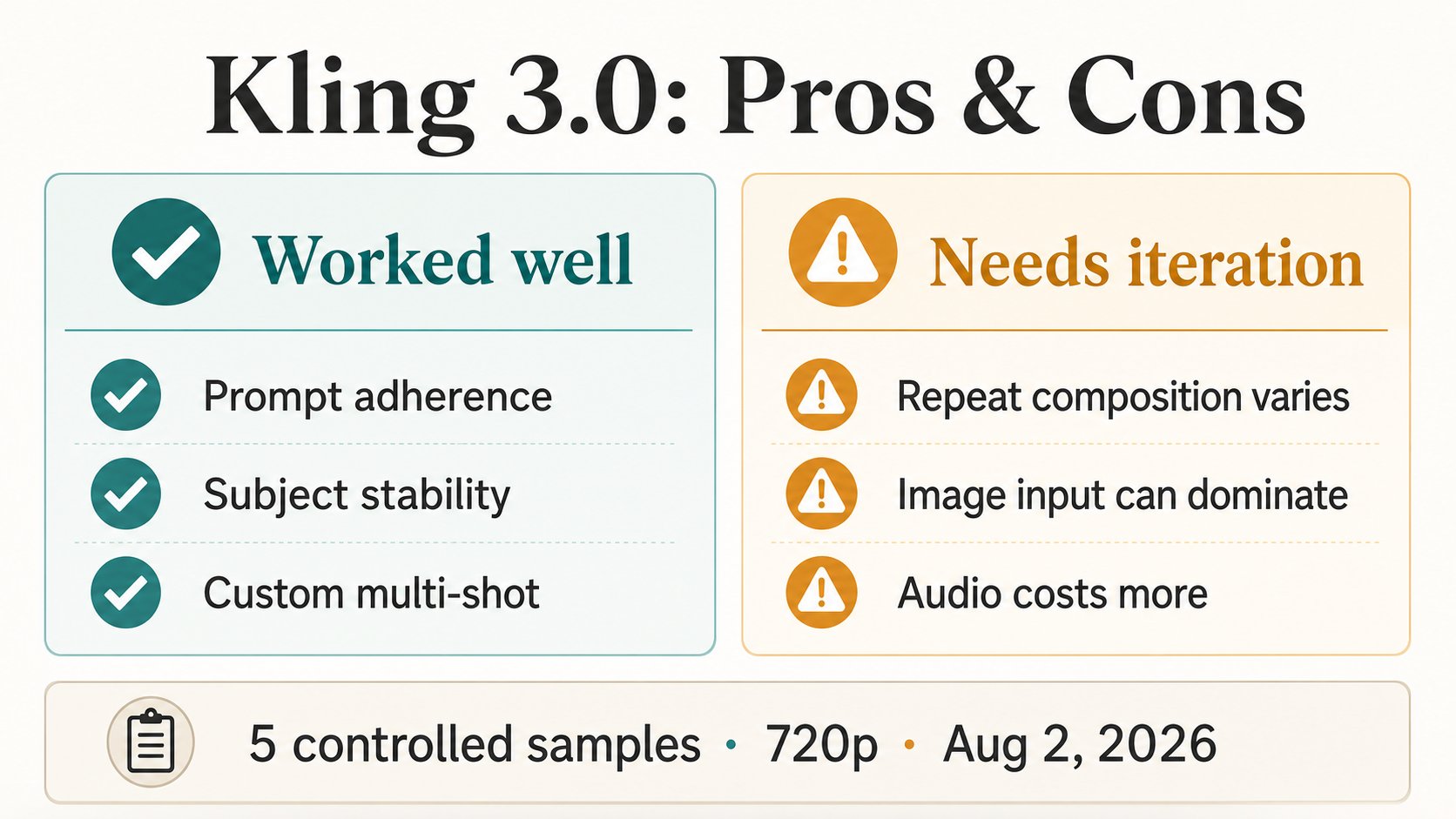
The strongest results were prompt adherence, subject stability, and the planned shot change. Repeat framing, source-image flexibility, and audio cost need more care.
How we tested Kling 3.0
We kept the scene narrow so the runs were easy to compare. The base prompt asked for a ginger-and-white cat on a charcoal sofa at golden hour. The cat had to turn toward a paper pinwheel while the camera made a slow dolly-in. Both the cat and pinwheel needed to remain visible at the end. The prompt also excluded people, text, and watermarks.
All text-to-video samples used the same core subject, action, lighting, and camera direction. The two repeat runs used exactly the same prompt and settings. For the sound test, we added short audio cues. The custom multi-shot sample used a wide setup followed by a closer view. The image-to-video sample began with a vertical cat photo and used the same requested scene.
| Case | Mode and settings | What changed | What we checked |
|---|---|---|---|
| A | Text to video, 5 seconds, 16:9, 720p, sound off | Baseline prompt | Subject, action, framing, stability |
| B | Text to video, 5 seconds, 16:9, 720p, sound off | Exact repeat of A | Repeatability and composition drift |
| C | Text to video, 5 seconds, 16:9, 720p, sound on | Added audio cues | Visual result and presence of an audio stream |
| D | Custom multi-shot, 6 seconds, 16:9, 720p, sound on | Two planned shots | Shot change, continuity, audio stream |
| E | Image to video, 5 seconds, 720p, sound on | Added a vertical cat start image | Source-image fidelity and prompt influence |
We reviewed the exported video dimensions, duration, video stream, and audio stream. One reviewer also compared contact sheets for subject identity, anatomy, scene elements, composition, and the requested shot change. We did not run a blind panel, score frame-level motion, test dialogue, or listen to judge whether the generated sound matched every cue. An audio stream being present is not the same as accurate sound design.
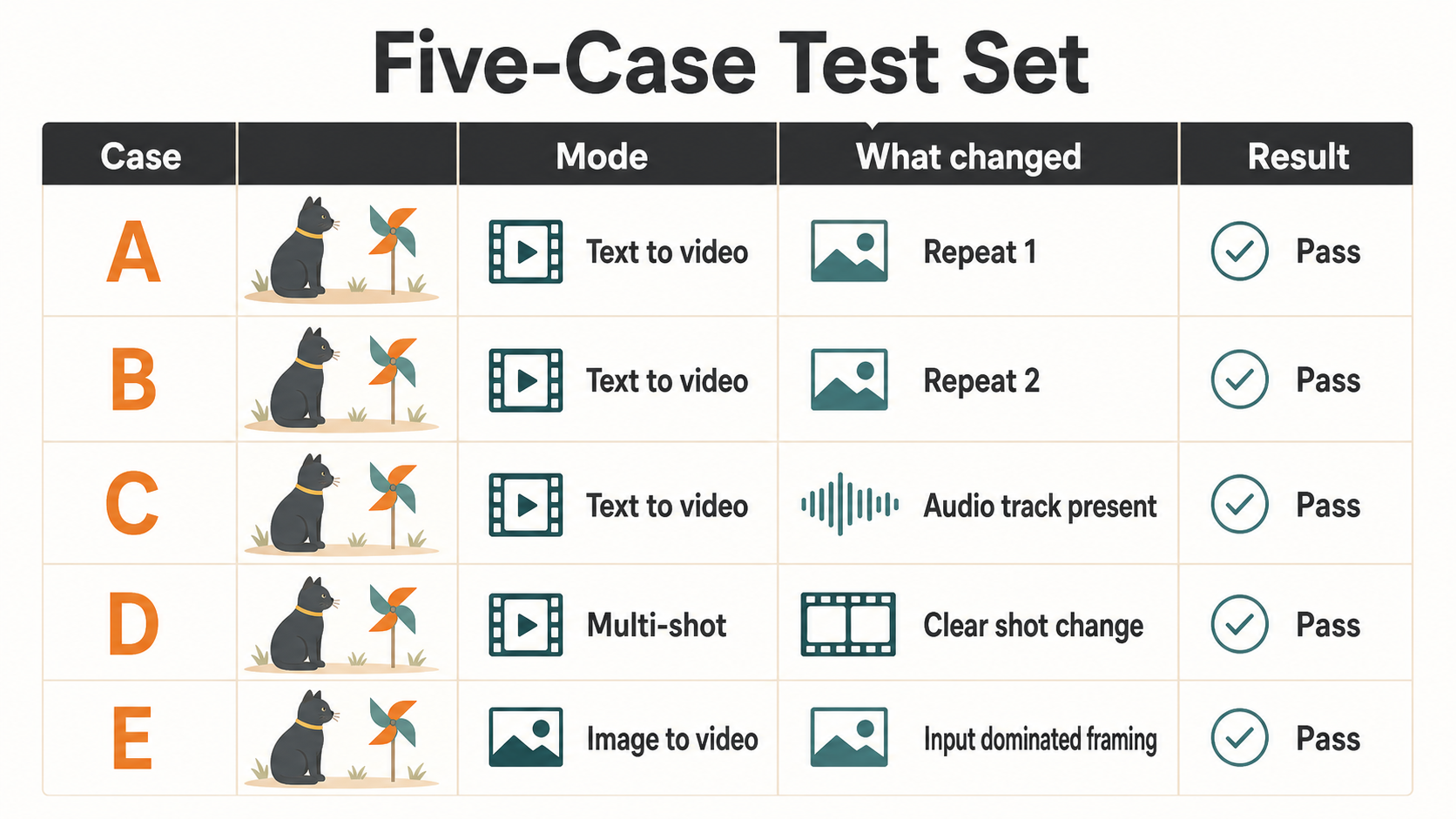
"Pass" in this test sheet means the run completed and produced the condition we were checking. It is not an overall quality score.
Where Kling 3.0 worked well
It followed the core scene prompt
Both repeat runs included the cat, dark sofa, warm late-day light, and pinwheel. The cat remained recognizable through the short motion, and the requested objects were still visible near the end. For a straightforward scene with one subject and one action, the output stayed close to the written brief.
That does not mean every detail landed identically. The useful part was semantic adherence: the main subject, setting, prop, lighting direction, and camera intent survived. This makes Kling 3.0 a reasonable fit for concept shots where the idea matters more than an exact frame match.
Subject stability held up in the short samples
We did not see a major anatomy failure in the reviewed contact sheets. The cat's body and face stayed coherent across each short clip. Five seconds is not a hard stress test, and a cat on a sofa is simpler than a crowded action scene. Still, these runs did not require us to discard a clip because the main subject visibly collapsed.
Custom multi-shot produced a real framing change
The multi-shot run moved from a wider setup to a closer composition around the middle of the clip. The cat and pinwheel remained recognizable across the change. This was the clearest evidence that custom multi-shot can be useful when a short video needs a planned visual beat instead of one continuous camera move.
It is still generation, not an edit timeline. The cut point and framing should be reviewed before using the clip in a finished sequence. For more control over how you write each beat, use our Kling 3.0 multi-shot prompt guide.
Native audio produced an audio track
The two sound-on files contained AAC stereo audio streams, while the sound-off files were video only. That confirms the setting changed the delivered file, not just the interface state. We did not evaluate whether every requested meow, rustle, or timing cue was correct, so this test supports a technical claim about audio presence, not a claim about semantic accuracy.
If sound is central to the scene, keep the first prompt simple and review the output with headphones. Our native audio guide shows how to place audio cues next to visible actions.
Where Kling 3.0 struggled
The same prompt did not lock the composition
Cases A and B both followed the idea, but the camera placement and arrangement changed. The second run was not a duplicate of the first. If a client has approved one exact frame, repeating the prompt is not enough to recreate it.
Use a start image when composition matters, and expect to generate options. Save the successful output rather than assuming you can regenerate it later. A prompt can define the scene, but it does not act like a fixed seed or a conventional shot template in this workflow.
Image to video can stay too loyal to the source
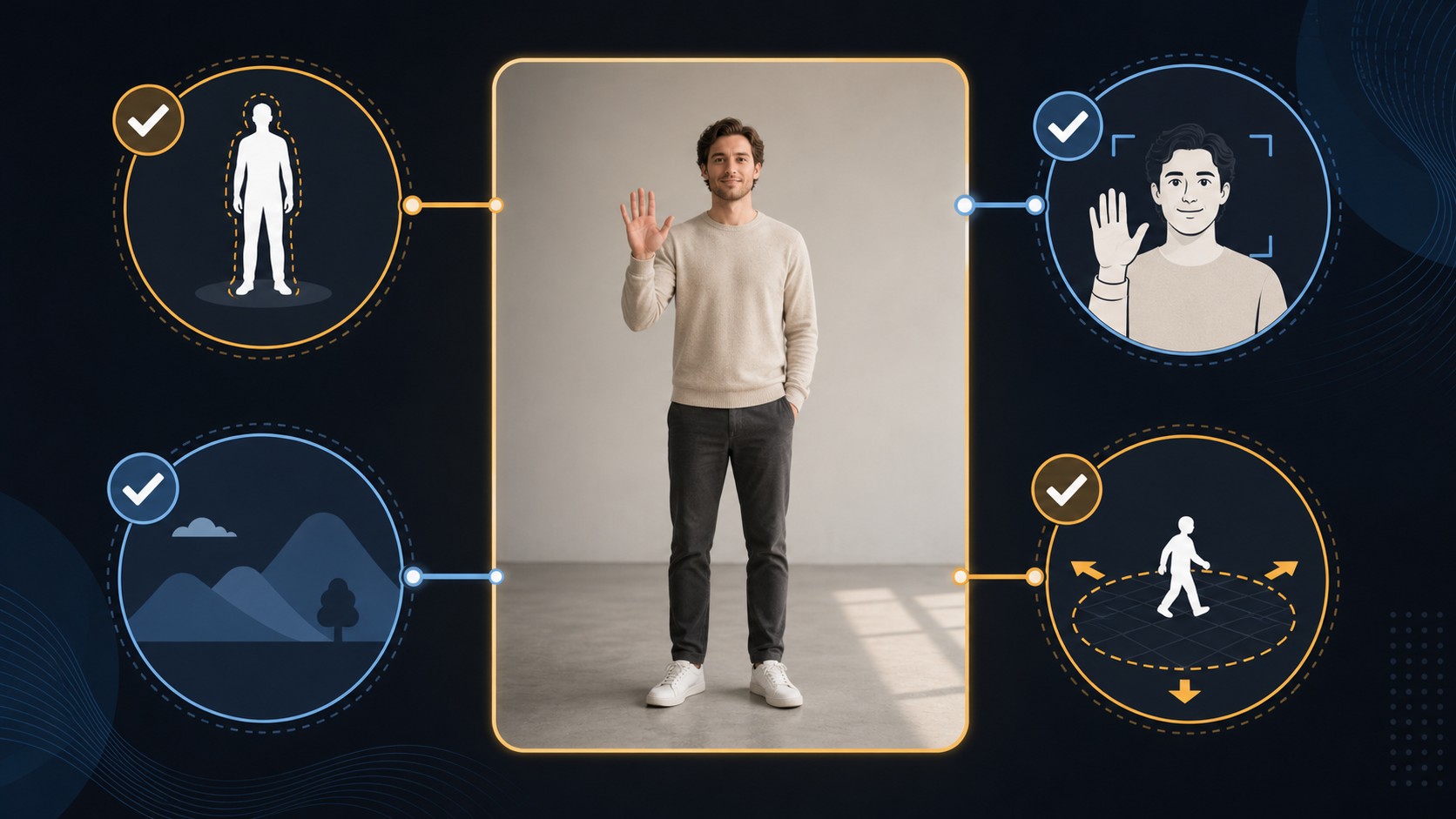
The image-to-video sample preserved the cat's face, coat, and vertical framing. It also kept source details that the prompt did not want, including the original hands and background. A large pastel pinwheel entered the frame, but the requested charcoal sofa and golden-hour room did not replace the source setting.
This is useful when the source image already has the right identity and layout. It is a limitation when you expect the prompt to rebuild the whole scene. Choose a start image that is already close to the desired composition. If the background, crop, or unwanted objects are wrong at the start, fix the image before animating it.
Sound costs more and still needs review
On KlingVideo, the current estimate for a five-second Kling 3.0 text-to-video clip at 720p is 139 credits with sound off and 209 credits with sound on. That is a 70-credit increase for the same duration and resolution. Pricing can change, so check the live pricing page before a batch.
The extra spend makes sense when generated sound is part of the deliverable. It is harder to justify for silent social edits, footage that will receive a separate mix, or early visual exploration. In those cases, test the picture with sound off, then enable sound only for the shortlisted prompt.
Which workflows fit best
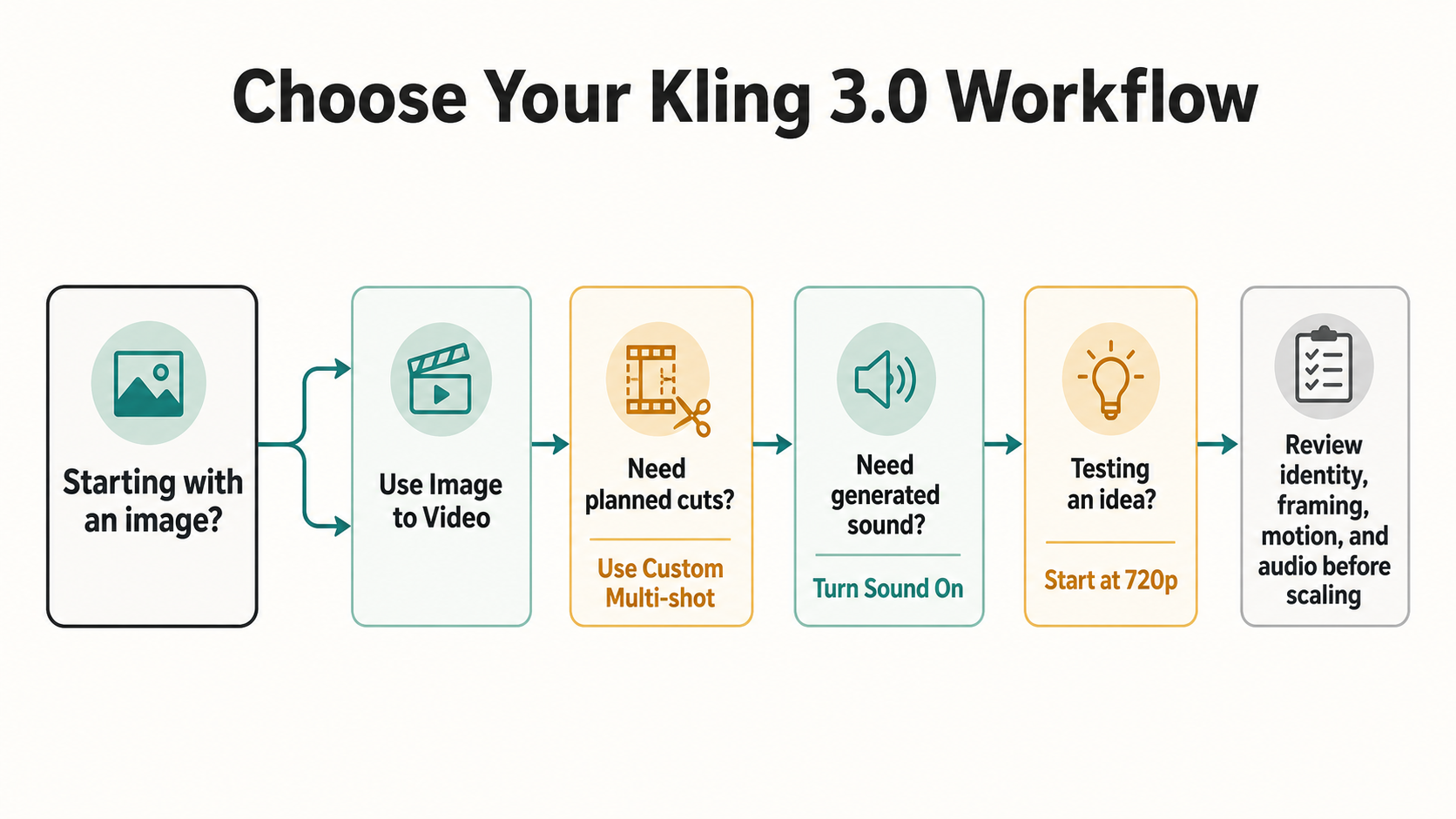
Kling 3.0 is a good fit for short concept shots, single-subject motion, product mood tests, and scenes that benefit from a planned framing change. Text to video gives the model more freedom to build the scene. Image to video is better when identity or the opening frame matters more than changing the whole layout. Custom multi-shot is worth trying when the story needs a visible cut or reveal.
It is a weaker fit for exact shot recreation, tightly matched repeat generations, or work that expects a start image to be radically restaged by text. It also needs human review before you rely on audio timing or content. For high-volume production, test a small representative batch before scaling the prompt.
A practical way to start
- Start at 720p with a five-second clip and sound off.
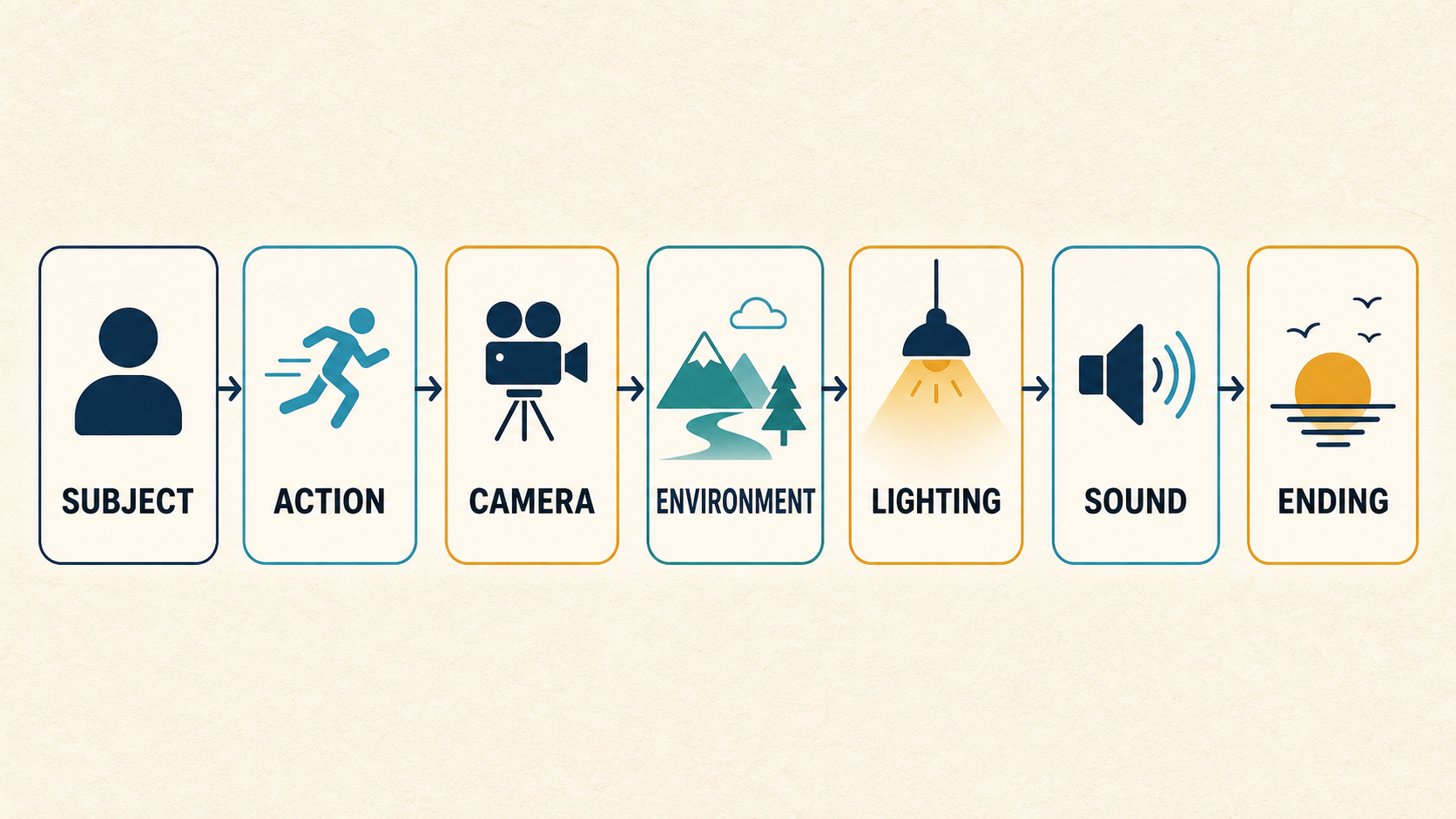
- Put one subject, one visible action, and one camera instruction in the prompt.
- Generate at least two options if composition matters.
- Use image to video only when the source already has the right crop and background.
- Add custom multi-shot when the scene needs a deliberate framing change.
- Turn sound on after the visual prompt is working, then review the actual audio.
You can run the same workflow on the Kling 3.0 model page. If this is your first generation, the Kling AI video generator tutorial covers the basic controls.
Frequently asked questions
Is Kling 3.0 good for text to video?
It was good at preserving the main meaning of our narrow prompt across two repeat runs. The exact composition changed, so it is better for generating options than reproducing one approved frame.
Is image to video more consistent than text to video?
It can be more consistent with the source subject and opening composition. That same loyalty can preserve an unwanted crop, background, or object. Start with an image that already resembles the intended scene.
Does Kling 3.0 native audio work?
Our sound-on test files contained stereo audio streams. We did not score the semantic accuracy or timing of individual sound cues, so listen to each result before using it.
Is custom multi-shot reliable?
Our one multi-shot sample produced the planned change from a wider view to a closer one while keeping the main subject recognizable. One sample is not enough to estimate a success rate. Treat it as a useful planning control that still needs review.
How many credits does Kling 3.0 use?
At the time of this test, KlingVideo estimated 139 credits for a five-second 720p text-to-video clip with sound off and 209 credits with sound on. Check current pricing before generating a larger batch.
Sources and test limits
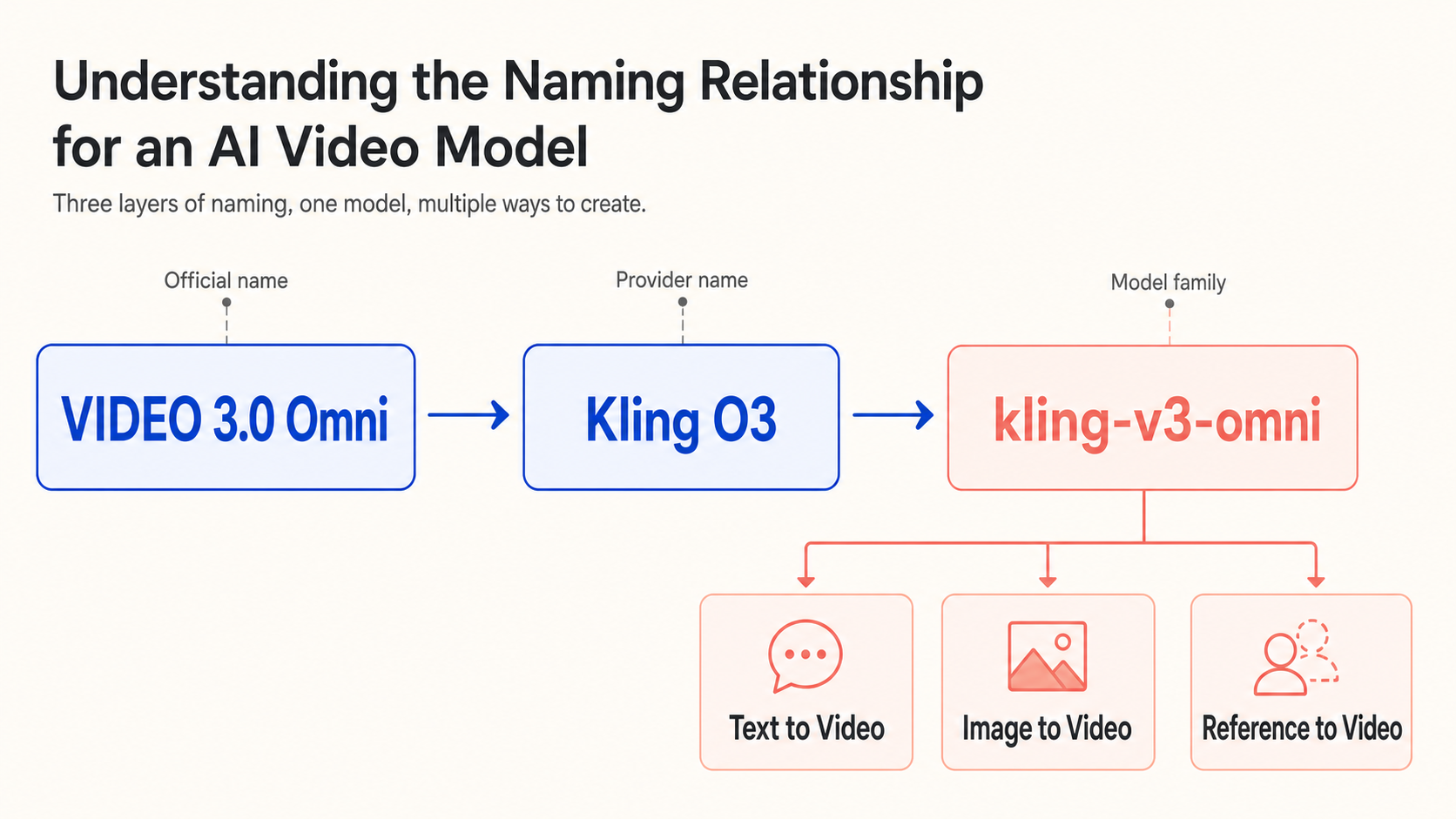
Kling AI's official VIDEO 3.0 model guide describes native audio, multi-shot creation, text and image workflows, and supported duration and resolution options. EvoLink's current API documentation covers the available text-to-video and image-to-video controls used by KlingVideo.
Our findings come from five 720p samples in one cat-and-pinwheel scenario, reviewed by one person on August 2, 2026. We did not compare Kling 3.0 with another model, test every duration or aspect ratio, or measure a statistical success rate. Read the results as a practical first check, not a universal verdict.
Last verified: August 2, 2026.