Quick answer
A useful Kling 3.0 native audio prompt plans the picture and sound in the same order. Start with the visible subject and action. Add one clear audio job, such as a spoken line, steady room tone, a contact sound, or a single impact. Then state when the sound should happen and what the shot does afterward. On KlingVideo, turn Sound on before generating. The current control is only an on/off switch; there is no separate language, voice, volume, or mixing panel.
Prompt wording is direction, not a guarantee. Describing a whisper, rain on glass, or a door slam tells the model what you want, but it does not guarantee exact words, perfect timing, or a fixed mix. Keep the first attempt simple enough to review. If the result drifts, change the speaker label, shorten the line, move the cue next to the action, or remove competing sounds before rewriting the whole scene.
Build the prompt in picture order
Write the scene the way a viewer experiences it. A compact formula is:
| Part | What to write | Example |
|---|---|---|
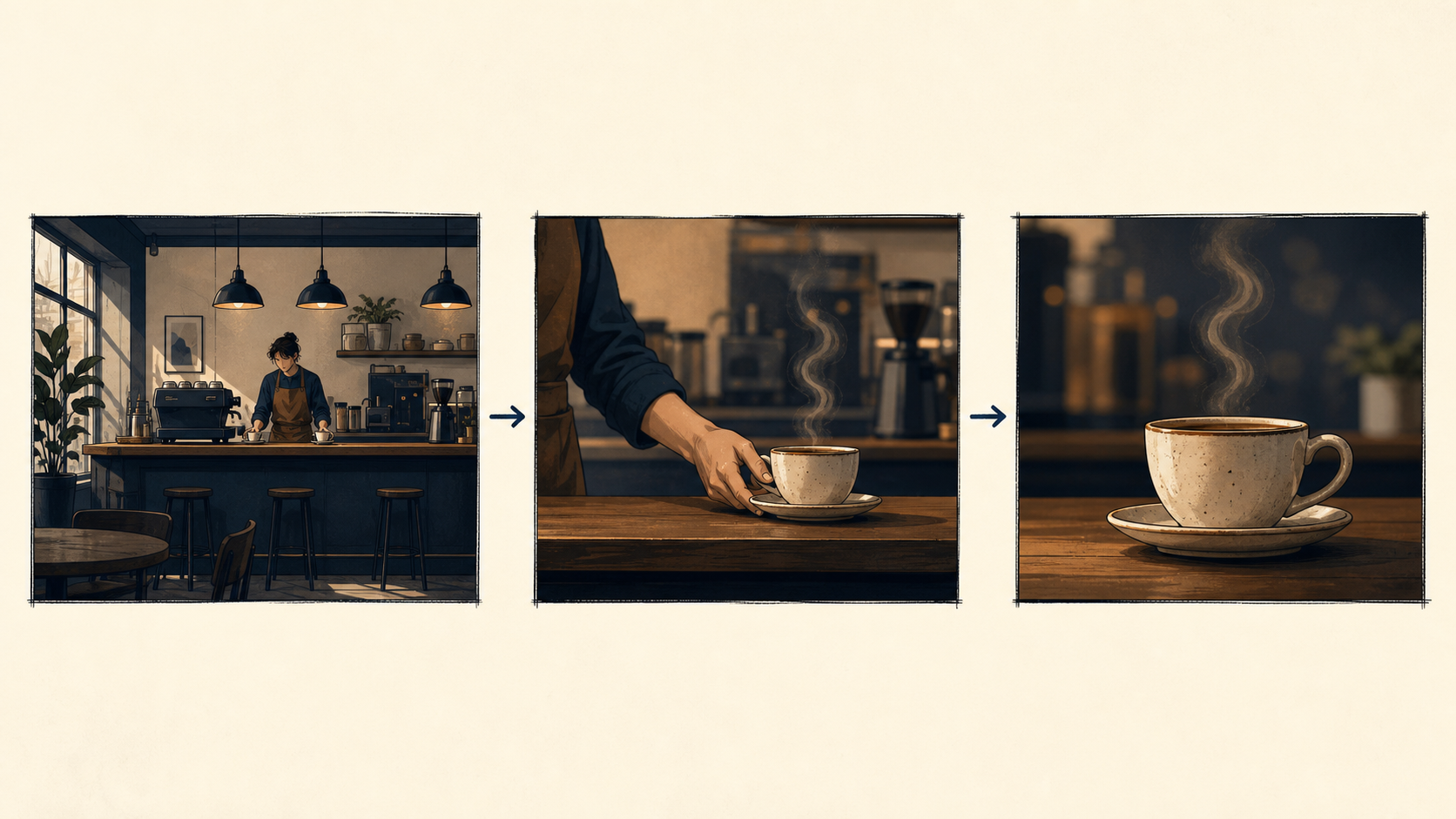
| Visual anchor | Subject, place, and framing | A barista at a quiet counter, medium shot |
| Action | One visible movement | She sets a ceramic cup on the counter |
| Timing | Where the beat lands | As the cup touches the wood |
| Sound cue | The sound that matters | A soft ceramic tap over low cafe room tone |
| Ending | What happens after the cue | She looks up and the camera holds |
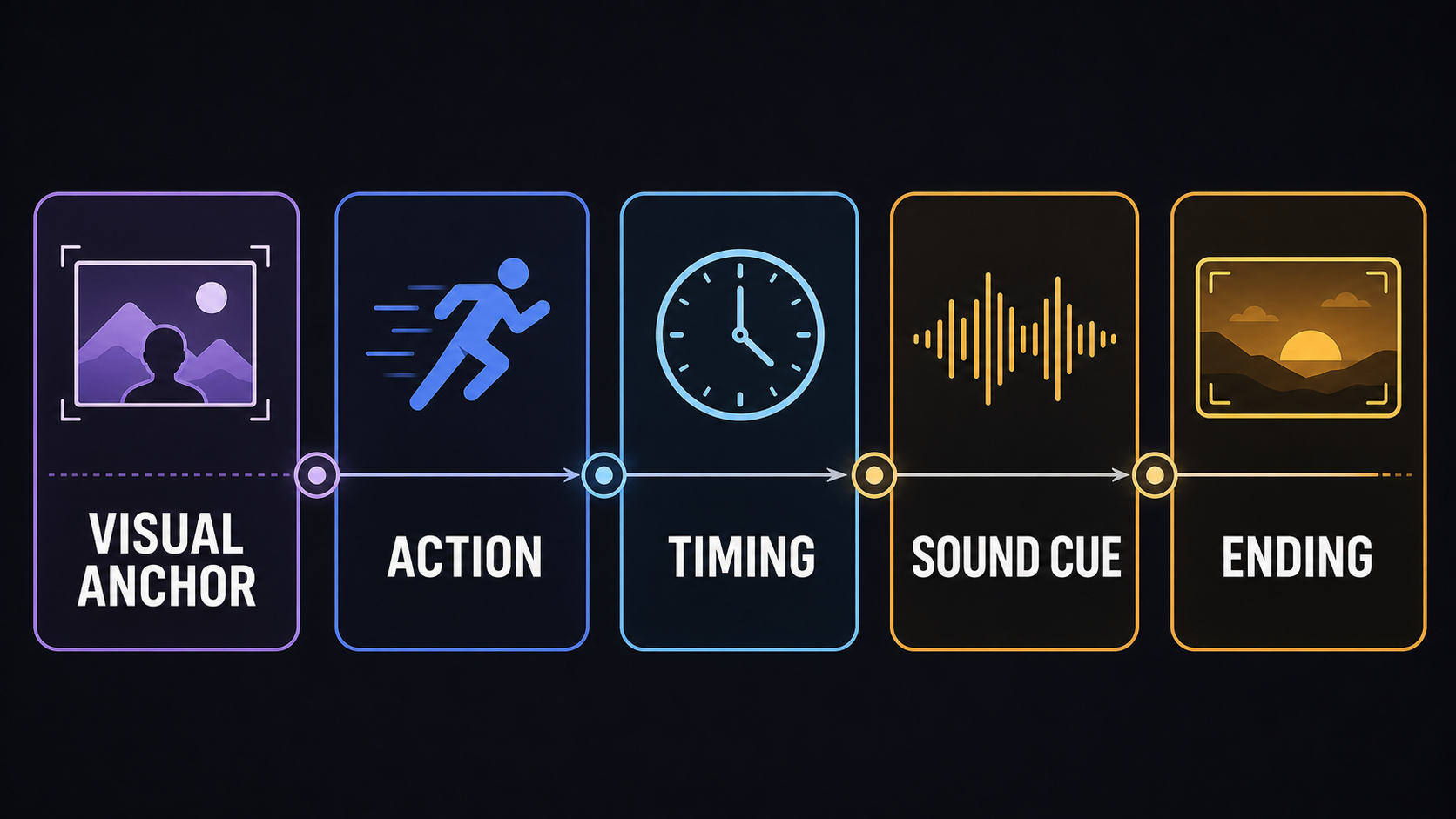
A sound cue is easier to place when the prompt ties it to a visible action and a clear ending.
The visual anchor keeps the model from treating the audio note as a separate request. Timing connects sound to something observable. The ending matters because the model needs room to finish the beat instead of rushing into another event.
Pair each visual beat with one audio cue
Think in four beats: open, action, impact, hold. The opening establishes the acoustic space. The action introduces movement. The impact is the sharpest cue. The hold lets the sound decay or the room tone return.
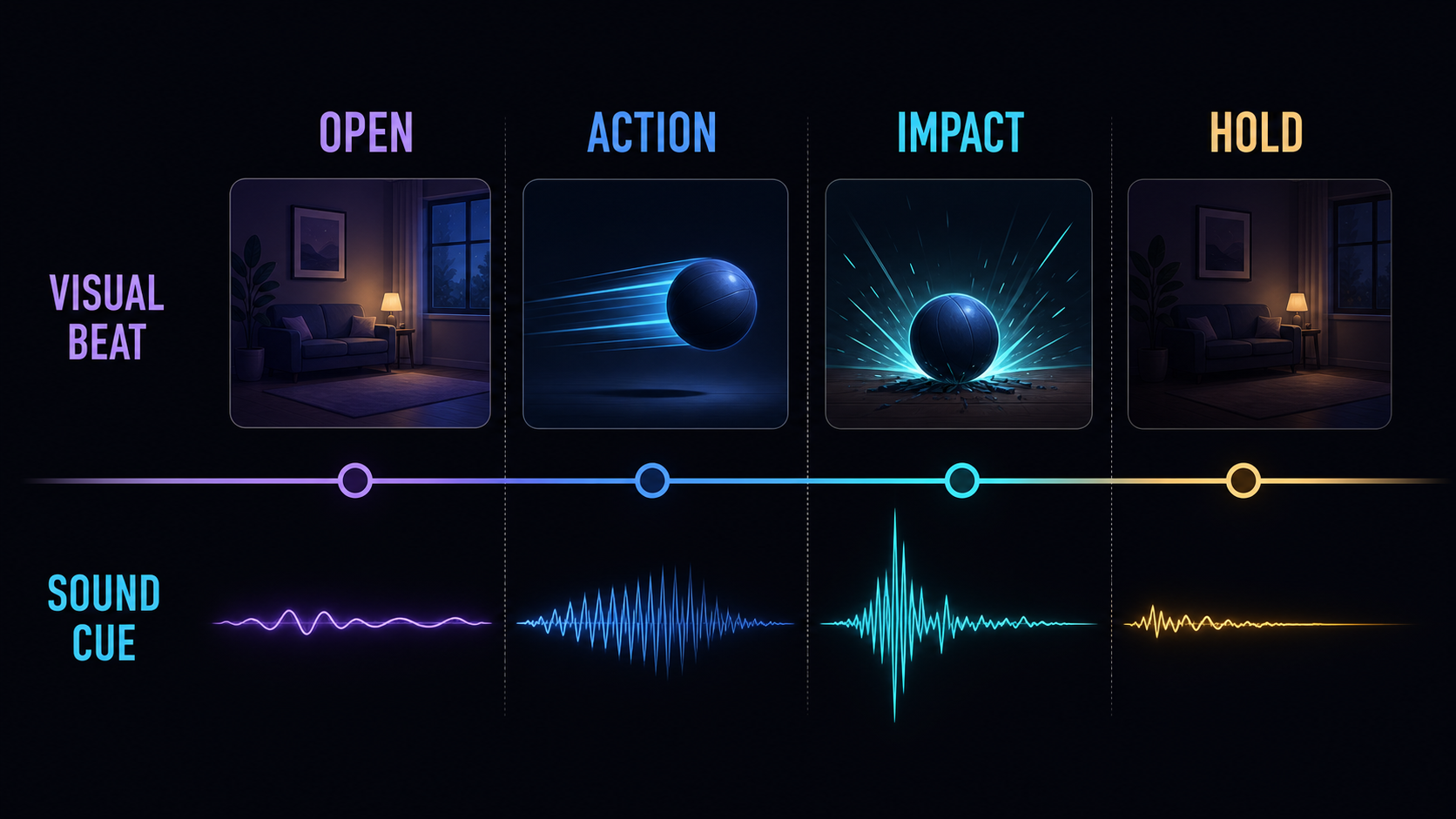
Pairing picture and sound beats makes the prompt easier to diagnose after the first result.
This structure does not require four camera cuts. One continuous shot can still have an opening atmosphere, a movement cue, one contact sound, and a quiet ending. For a sequence with several shots, use the same logic inside each beat and keep the audio priority stable. The Kling 3.0 Multi-Shot Prompt Guide explains how to order those visual beats.
Give dialogue, ambience, foley, and impact different jobs
These sound directions are related, but they should not compete for the same moment.
| Sound direction | Use it for | Prompt pattern | Common mistake |
|---|---|---|---|
| Dialogue | A specific speaker and short line | Speaker + delivery + exact line + visible action | A long line with no named speaker |
| Ambience | Continuous acoustic context | Place + steady background sound + intensity | Listing several unrelated environments |
| Foley | Small contact and movement sounds | Object or body action + material sound | Asking for every footstep and fabric detail at once |
| Impact | One emphasized beat | Visible contact + immediate sound + short hold | Stacking several impacts in a short clip |
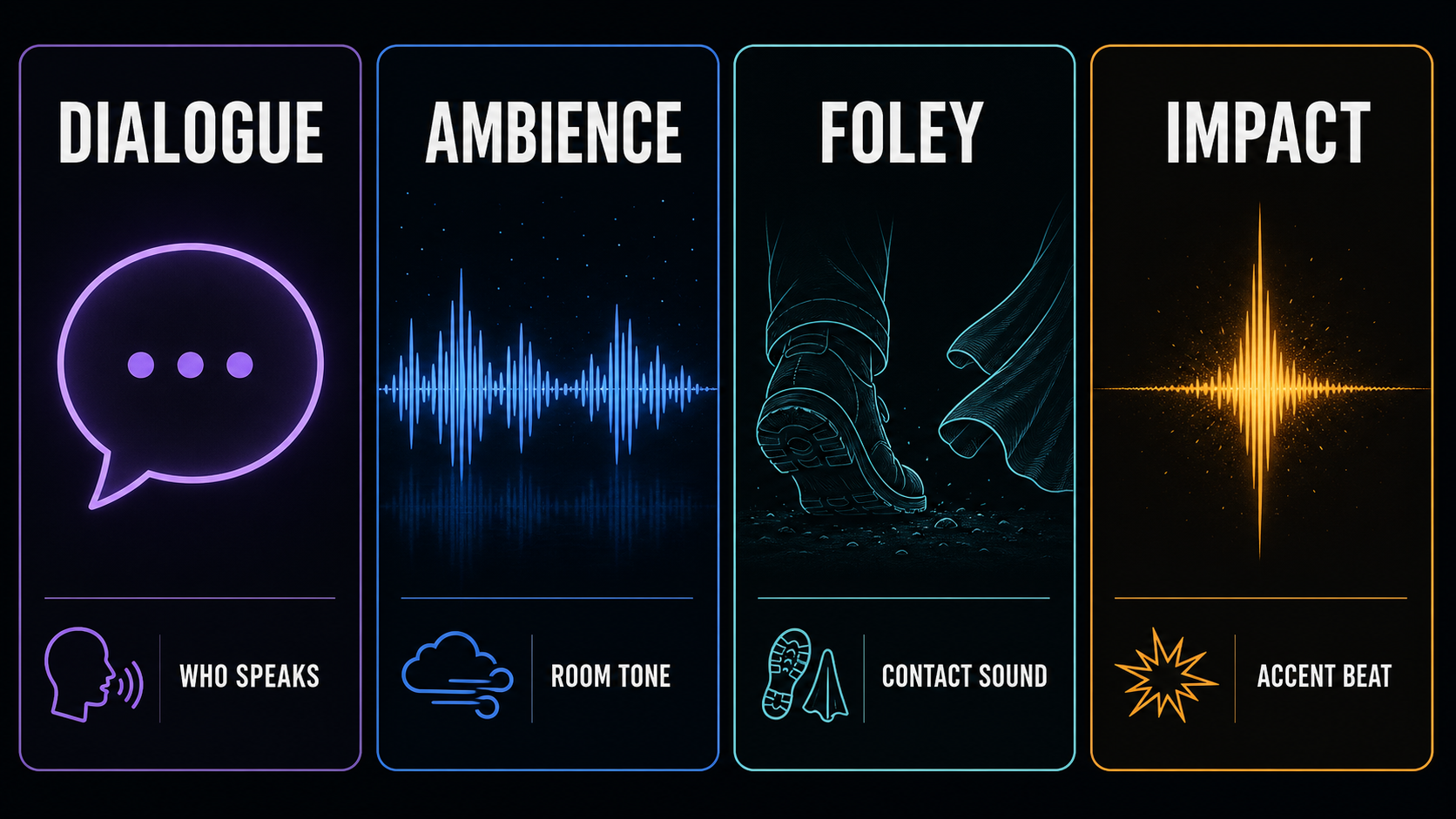
Choose the sound category that carries the scene. Other cues can stay quieter or wait for a later pass.
Kling AI's official prompt guidance recommends keeping the speaker, spoken line, and delivery close together. The same principle helps with effects: put the sound next to the action that causes it. Avoid separating a door slam from the sentence that describes the door closing.
Six audio-aware prompt templates
These are writing templates, not recorded test results. They describe intent and cannot promise exact dialogue, timing, or sound design.
1. Short dialogue in a quiet room
Medium shot in a small kitchen at dawn. Mara closes the refrigerator and turns toward the table. Mara, speaking softly: "We should leave before the rain starts." A low refrigerator hum stays under the line. After she speaks, the room goes still and the camera holds on her face.
This one is easy to review: there is one speaker, one short line, one steady background sound, and a visible pause afterward.
2. Ambience without dialogue
Wide locked shot of an empty tram stop just after rain. Water drips from the shelter roof, distant tires pass on wet pavement, and a soft electrical buzz comes from the sign. No dialogue. A tram light appears in the distance as the ambience continues.
The location is clear, the three sounds belong together, and no speech competes with them.
3. Close-up foley
Close-up of gloved hands opening an old canvas field bag on a wooden bench. The buckle clicks, the canvas folds with a dry rustle, and two metal keys touch once inside the bag. Keep the background quiet. Hold on the open bag after the keys settle.
Every sound has a visible source, and the order follows the hand movement.
4. One impact beat
Low side view of a basketball rolling across an empty gym floor. The ball reaches the wall and hits it once with a short hollow thump. The ball rolls back slowly while the gym echo fades. No music and no dialogue.
Only one impact gets the emphasis, followed by a visible and audible decay.
5. Dialogue over ambience
Medium two-person shot at a quiet outdoor food stall at night. Oil sizzles softly and distant street noise stays low. Ana looks at the vendor and says, calmly: "One more, please." Keep the line clear above the ambience. The vendor nods and reaches for the tray.
The prompt makes the priority clear and keeps both layers modest.
6. Multi-shot sound continuity
Shot 1: Wide view of a cyclist entering a tunnel, with light tire noise and a steady tunnel hum. Shot 2: Side tracking view as the bicycle passes a puddle; one water splash lands on that action. Shot 3: Close view as the cyclist stops near the exit; the tunnel hum drops and outdoor birds become audible. Hold on the brighter exit.
Here the acoustic space changes with the location, while the bicycle remains the visual and sonic anchor.
Fix sound and picture drift one variable at a time
| Symptom | Check first | Rewrite |
|---|---|---|
| The line starts too late | Is the line far from the speaker's action? | Put speaker, delivery, and line in the same sentence as the visible action |
| The wrong person speaks | Are speakers named consistently? | Use one name per character and attach each line directly to that name |
| Ambience disappears | Is it treated as a one-time event? | Describe it as steady room tone that continues under the scene |
| An impact lands at the wrong moment | Is the cause visible and ordered first? | Write action, contact, sound, then hold |
| The mix feels crowded | Are several sounds marked as equally important? | Pick one priority and reduce the rest to background |
| The clip is silent | Is Sound off, or is no sound requested? | Turn Sound on and add one explicit audio cue |
Do not change every part of the prompt after one bad result. Keep the scene and camera stable, then adjust one of four things: speaker, cue, timing, or priority. This makes the next result easier to compare.
Use the current KlingVideo sound control correctly
The current Kling 3.0 text-to-video workflow exposes a Sound control with two values: On and Off. It defaults to On. The same screen also exposes duration, aspect ratio, and quality, but it does not expose separate controls for language, accent, voice identity, volume, music level, or cue timing.
| Current control | What it does | What it does not do |
|---|---|---|
| Sound: On | Requests generated sound with the video | It does not guarantee exact speech or synchronization |
| Sound: Off | Requests a silent generation | Audio words in the prompt do not replace the disabled control |
| Prompt text | Describes speaker, ambience, foley, impact, and timing | It is not a mixer or a frame-accurate audio timeline |
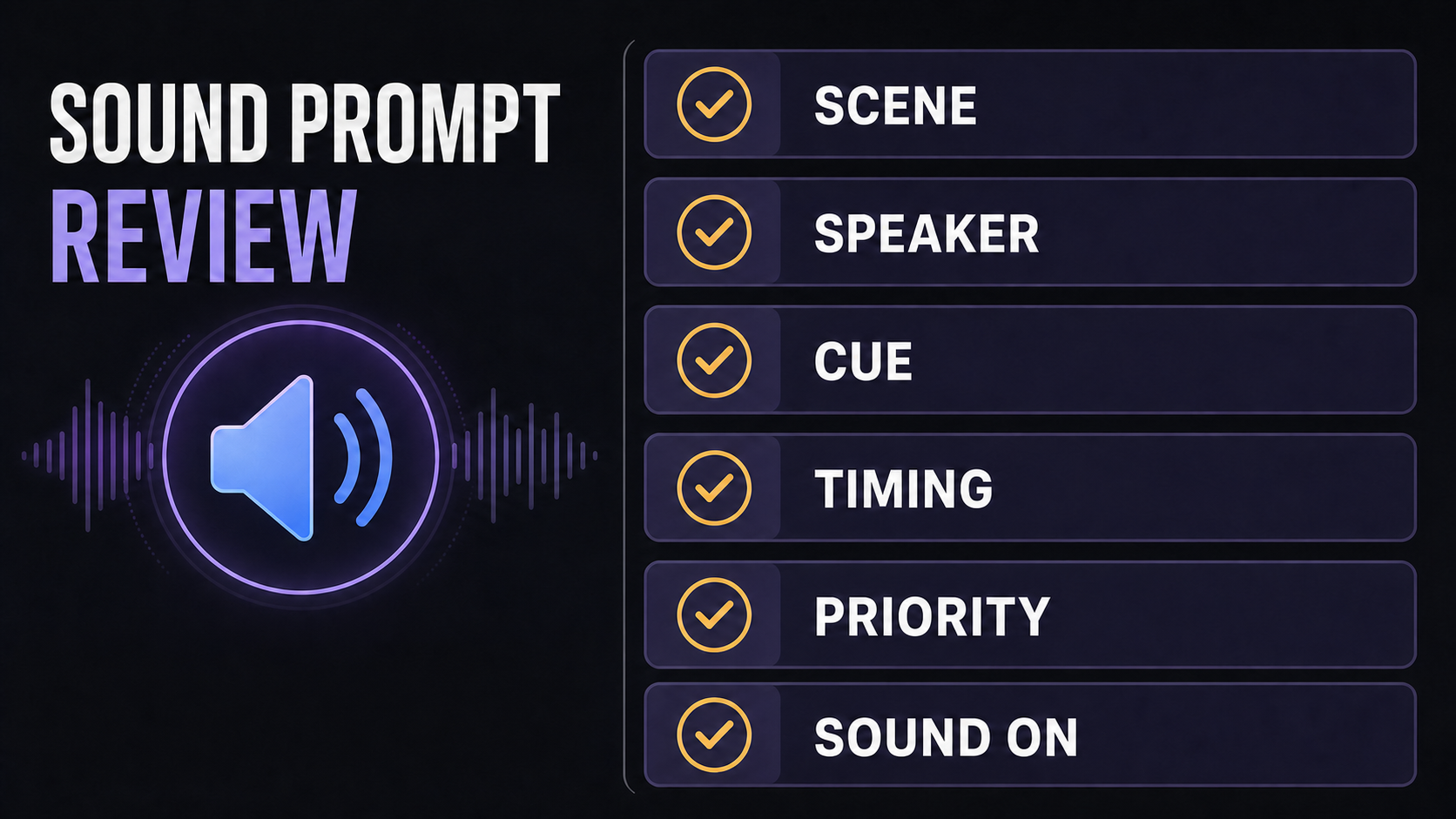
Before generating, check the scene, speaker, cue, timing, priority, and Sound setting.
Kling AI's upstream VIDEO 3.0 guide describes native dialogue in several languages, dialects, and accents. KlingVideo currently does not expose a language or accent selector in this workflow. Treat language and delivery words as prompt direction, then verify the result. Do not treat them as fixed parameters.
What the current sample proves
The Kling 3.0 model page includes a local native-sound planning sample. We checked the published media file on July 29, 2026 and confirmed that it contains both video and audio streams. That supports a narrow claim: the current page has an audio-aware sample and the workflow exposes sound planning.
The sample does not prove exact word accuracy, a guaranteed language, fixed cue timing, or a success rate. Those points need a controlled test set. Review your own output before using it as a final dialogue or sound-design pass.
FAQ
Does Kling 3.0 generate native audio?
Kling AI documents Native Audio for VIDEO 3.0. On KlingVideo, choose Kling 3.0, keep Sound on, and describe the audio with the visual action.
How should I write dialogue in a Kling AI prompt?
Name the speaker, add a short delivery note, write the exact line, and connect it to a visible action. Keep that information together instead of scattering it across the prompt.
Can a prompt guarantee exact dialogue or lip sync?
No. A prompt gives direction. It cannot guarantee exact words, timing, pronunciation, or mouth movement in every generation.
What is the difference between ambience and foley?
Ambience is the steady sound of the place, such as rain outside or a low room hum. Foley comes from visible contact or movement, such as cloth folding, keys touching, or shoes on gravel.
Should I ask for music, dialogue, ambience, and effects together?
Only when the scene needs them and the priority is clear. For a first attempt, choose one main audio job and keep the other layers simple.
What should I do if the audio is still wrong?
Change one variable at a time. Shorten the line, name the speaker more clearly, move the cue next to its action, or remove a competing sound. For exact final timing, plan to review and edit the generated result.
Try a simpler first pass
Open the Kling 3.0 text-to-video generator, turn Sound on, and start with one visible action plus one audio cue. Add a second sound only after the first result is easy to diagnose.
Sources and methodology
- Kling VIDEO 3.0 Model User Guide, published February 6, 2026 and accessed July 29, 2026. Used for official Native Audio, speaker assignment, and upstream language context.
- Kling AI Prompt Guide, accessed July 29, 2026. Used for official guidance on speaker labels, dialogue, ambience, and effects.
- Kling 3.0 on KlingVideo and the text-to-video generator, checked July 29, 2026. Used for the current Sound control and the published audio-aware sample.
- Last verified: July 29, 2026.