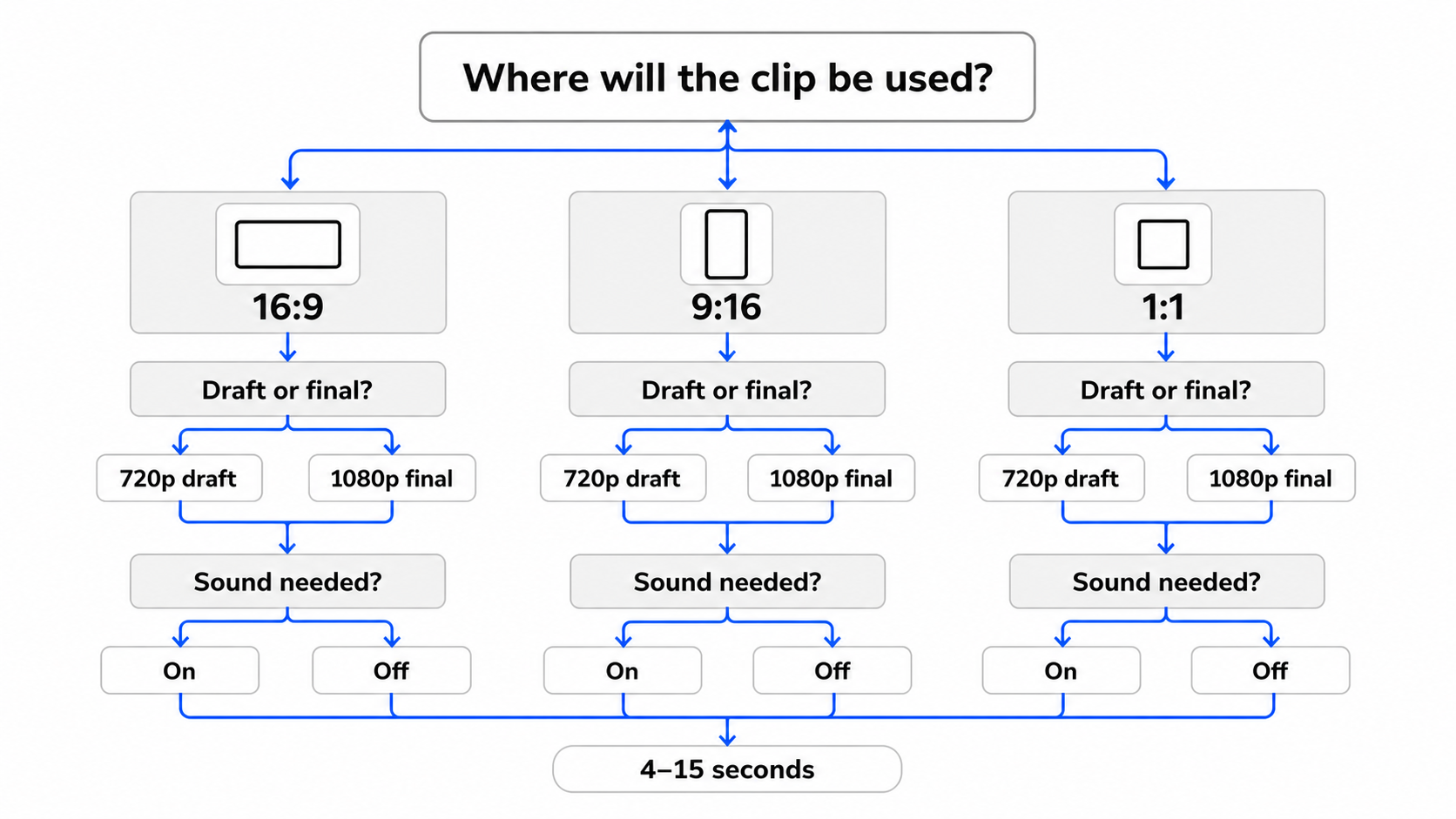
Choose the delivery frame first, then decide whether you are making a draft or a final export.
Quick answer: choose settings from the delivery backward
Start with the place where the video will appear. Pick 16:9 for landscape players and presentations, 9:16 for full-screen vertical feeds, or 1:1 when a square feed placement is the actual destination. Then decide whether this generation is a draft or a final candidate. On KlingVideo, 720p is the practical draft setting because it lets you test framing, motion, and timing before committing to the higher-resolution option. Move to 1080p when the prompt and composition are already stable and the delivery really benefits from it. Choose a duration between 4 and 15 seconds based on how much visible action the shot needs. Keep it short when you are testing one motion idea. Use more time only when the action has a clear sequence. Turn sound on when audio is part of the concept and describe the cue in the prompt. Turn it off when you plan to add music, voiceover, or effects later. The current default is 16:9, 5 seconds, 720p, with sound on.
The current KlingVideo settings
The Kling 3.0 model page and text-to-video generator currently expose these choices:
| Setting | Available choices | Current default | Decide it from |
|---|---|---|---|
| Resolution | 720p or 1080p | 720p | Review stage and delivery requirement |
| Aspect ratio | 16:9, 9:16, or 1:1 | 16:9 | Final placement and composition |
| Duration | 4 to 15 seconds | 5 seconds | Number of actions and shot rhythm |
| Sound | On or off | On | Whether audio belongs in this generation |
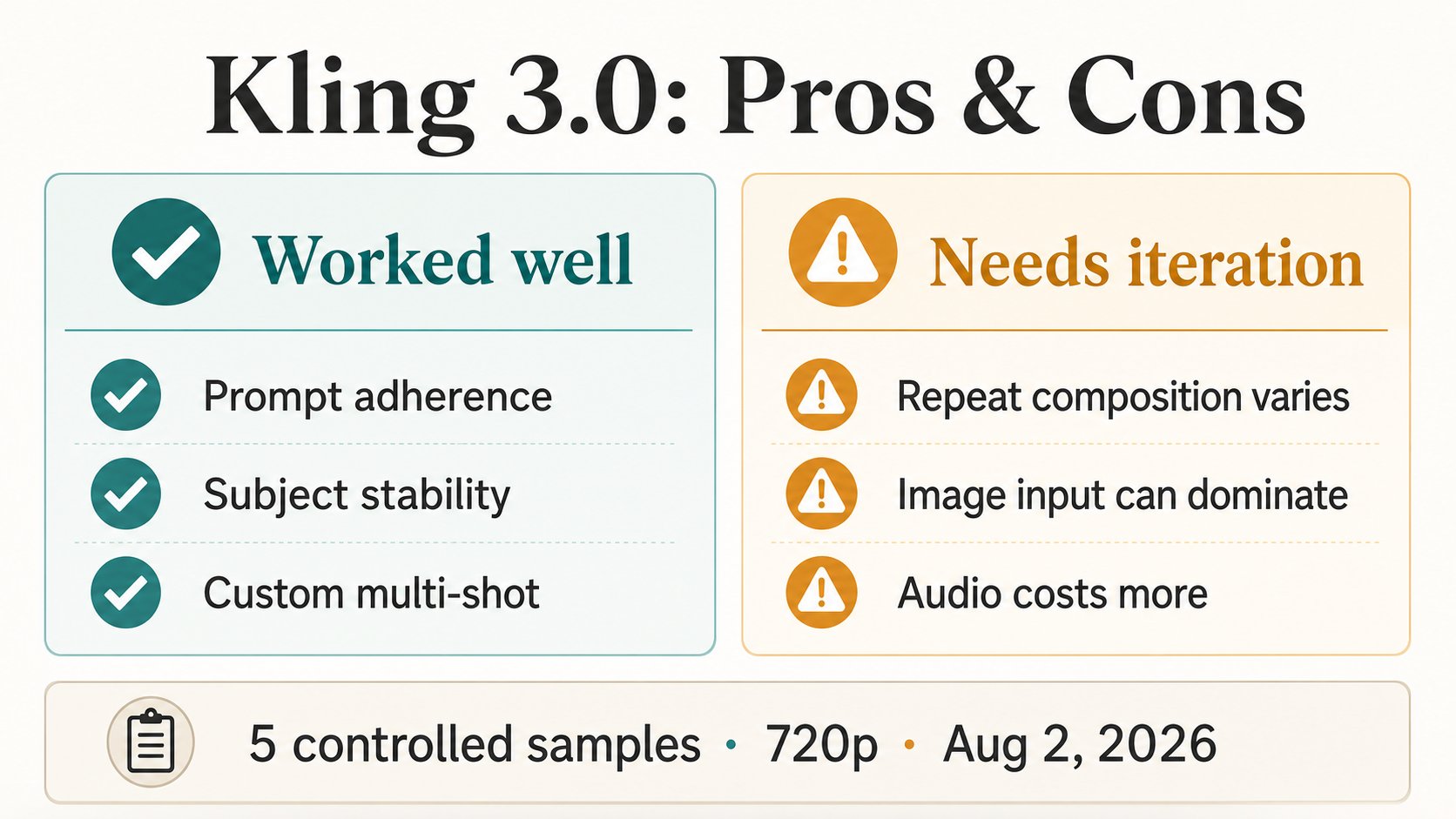
These are the settings in the KlingVideo integration, verified on August 14, 2026. Kling's official VIDEO 3.0 guide describes a broader model capability of up to 15 seconds and native audio. The generator controls above are the choices that matter when you create on KlingVideo.
720p vs 1080p: use resolution as a workflow choice
1080p has more pixels than 720p. It does not automatically fix a weak prompt, unstable motion, an awkward crop, or a bad ending frame. Those problems need another draft.
Use 720p while you are still answering questions such as:
- Is the subject large enough in the chosen frame?
- Does the camera move in the intended direction?
- Can the action finish within the selected duration?
- Does the last frame work for the edit?
Use 1080p when the shot direction is settled and the destination calls for a larger deliverable. A final candidate for a presentation, landscape player, or asset library may justify 1080p. A disposable motion test usually does not.
This distinction matters for credits. KlingVideo calculates the generation quote from the selected model and settings. Duration is billed per second, while resolution and sound change the applicable rate for Kling 3.0. The exact credit amount appears in the generator before you submit. Check the live pricing page and Kling AI credits guide instead of relying on a copied price table.
A useful rule is simple: do not spend extra resolution on a shot whose composition is still changing. Lock the shot first.
Choose the aspect ratio before writing camera movement
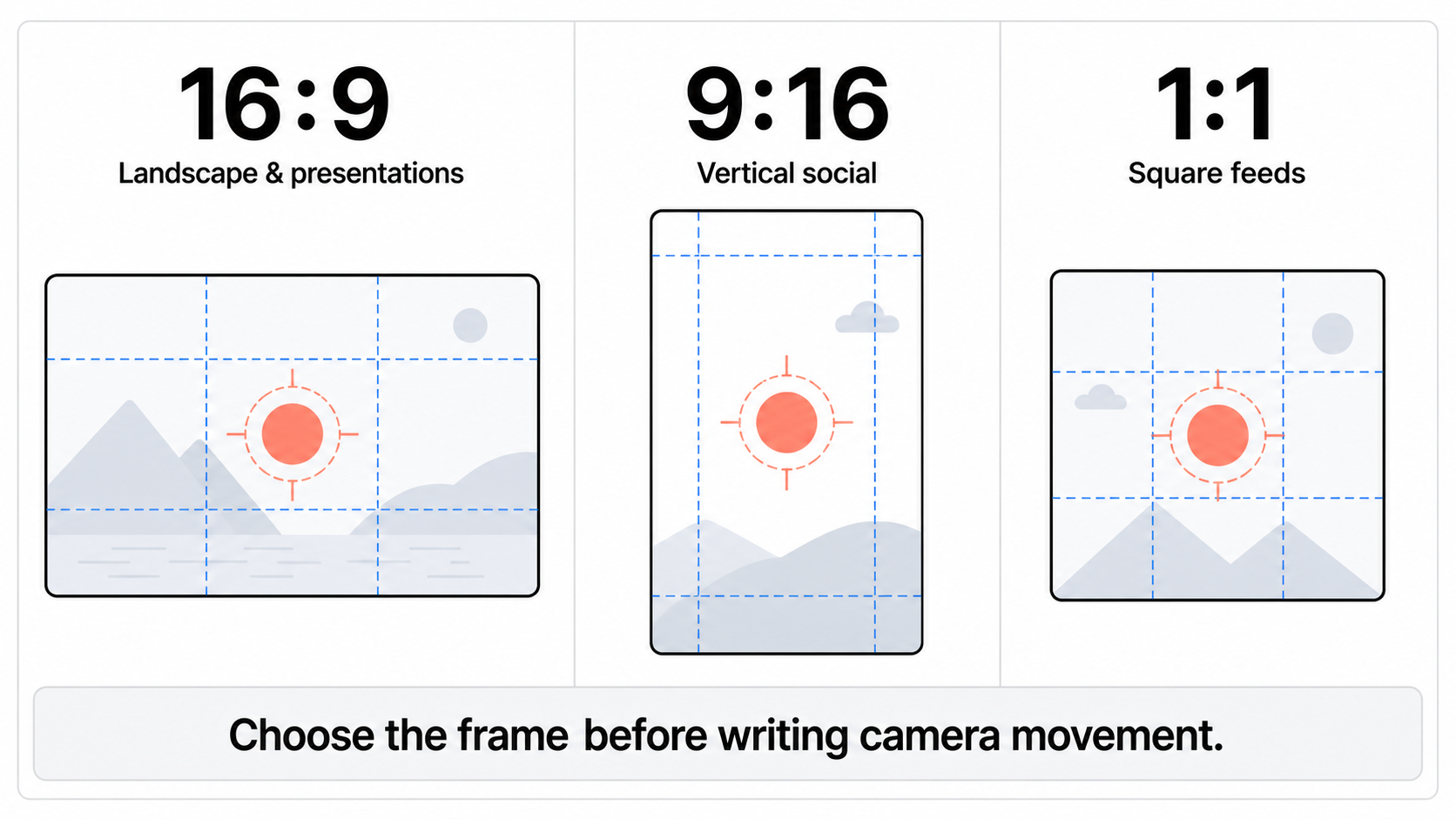
Each frame changes where the subject can move and how much background remains visible.
Aspect ratio is part of the shot design. A prompt written for a wide frame may fail after a vertical crop because the subject travels sideways or an important object sits near an edge. Choose the final frame before you describe the camera path.
Use 16:9 for landscape scenes
16:9 fits web players, YouTube-style landscape video, presentations, and scenes that need lateral space. It is a good match for tracking shots, two-person staging, wide environments, and movement from left to right.
Keep the main subject away from the extreme edges if the clip may later need a vertical cut. If the landscape version is the final delivery, use the width intentionally. Name the foreground or background anchors that should pass through the frame.
Use 9:16 for vertical feeds
9:16 fits full-screen vertical placements. The frame gives the subject more room above and below, but much less room on the sides. Forward movement, a centered walk, a tilt, or a controlled push-in often reads more clearly than a long sideways route.
Leave usable space near the top and bottom for platform overlays. Do not place the face, product label, or final reveal against an edge. If you are adapting a landscape idea, rewrite the composition rather than asking the model to make the same wide blocking fit a narrow frame.
Use 1:1 for compact feed placements
1:1 is useful when the actual placement is square or when the composition should stay compact around one subject. It works well for product turns, centered portraits, short demonstrations, and loop-like motion.
Square is not a universal compromise between landscape and vertical. It has its own composition. Keep the action near the center unless an off-center arrangement is deliberate, and make sure the camera path does not depend on space that the square frame removes.
| Delivery | Start with | Composition note |
|---|---|---|
| Landscape player or presentation | 16:9 | Use width for travel, staging, or environment |
| Full-screen vertical feed | 9:16 | Protect top and bottom overlay areas |
| Square feed placement | 1:1 | Keep the subject and action compact |
| Multiple final formats | Generate for the priority format | Recompose for the second format instead of assuming a crop will work |
Set duration from the action, not from the maximum
KlingVideo currently allows 4 to 15 seconds for Kling 3.0 text-led generation. The maximum is an option, not a recommendation for every prompt.
Start by writing the visible sequence in plain language. If it contains one action and one camera move, 4 to 6 seconds is often enough for a draft. If it needs a setup, action, and held ending, give it more time. A longer clip should earn each extra second with something the viewer can see or hear.
| Shot plan | Practical starting range | What to check |
|---|---|---|
| One subject action, static or simple camera | 4 to 6 seconds | Does the action start and finish cleanly? |
| Setup followed by one main action | 7 to 10 seconds | Is there enough time for the transition and final hold? |
| Short sequence with distinct beats | 11 to 15 seconds | Are the beats explicit, ordered, and visually compatible? |
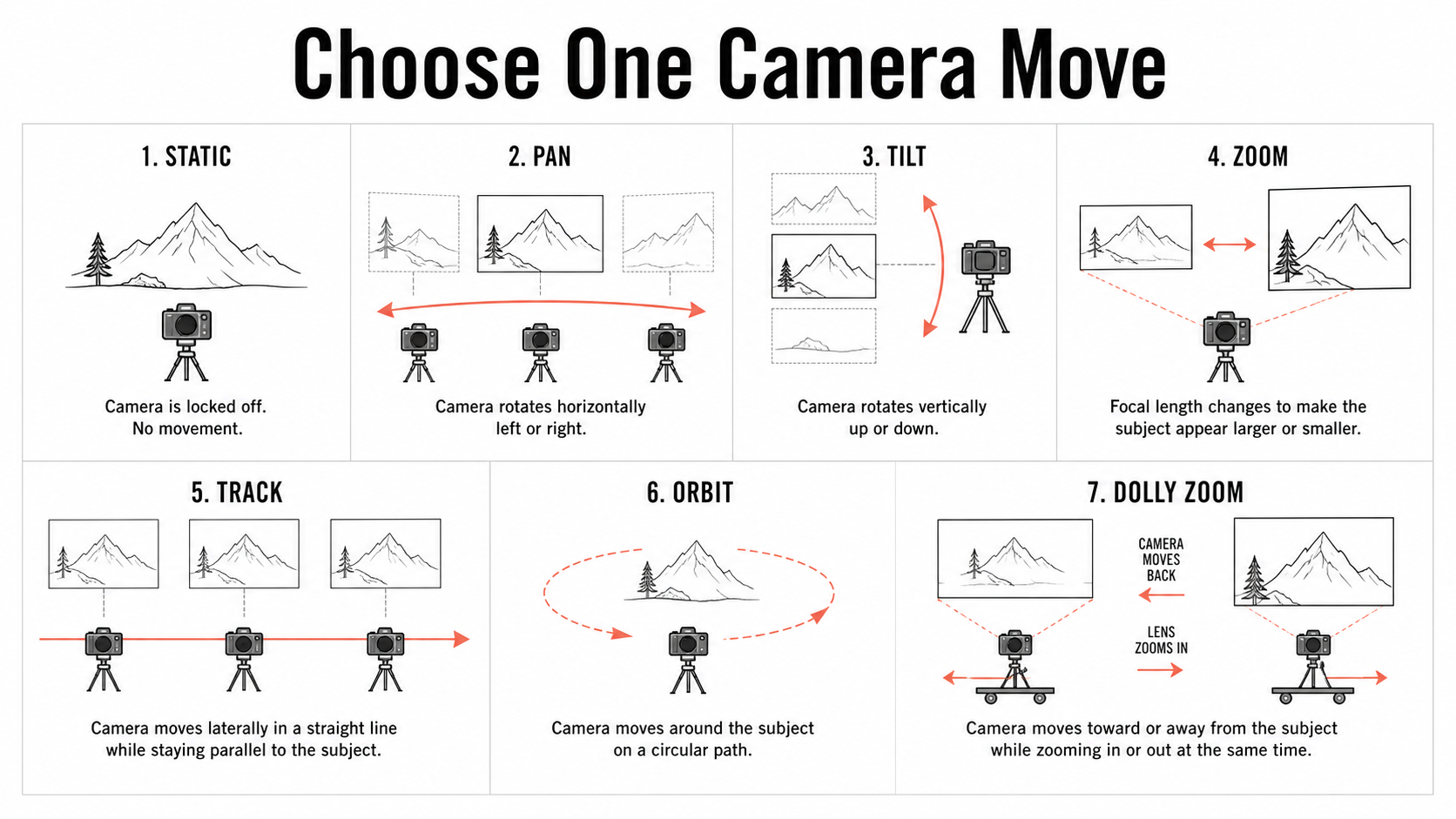
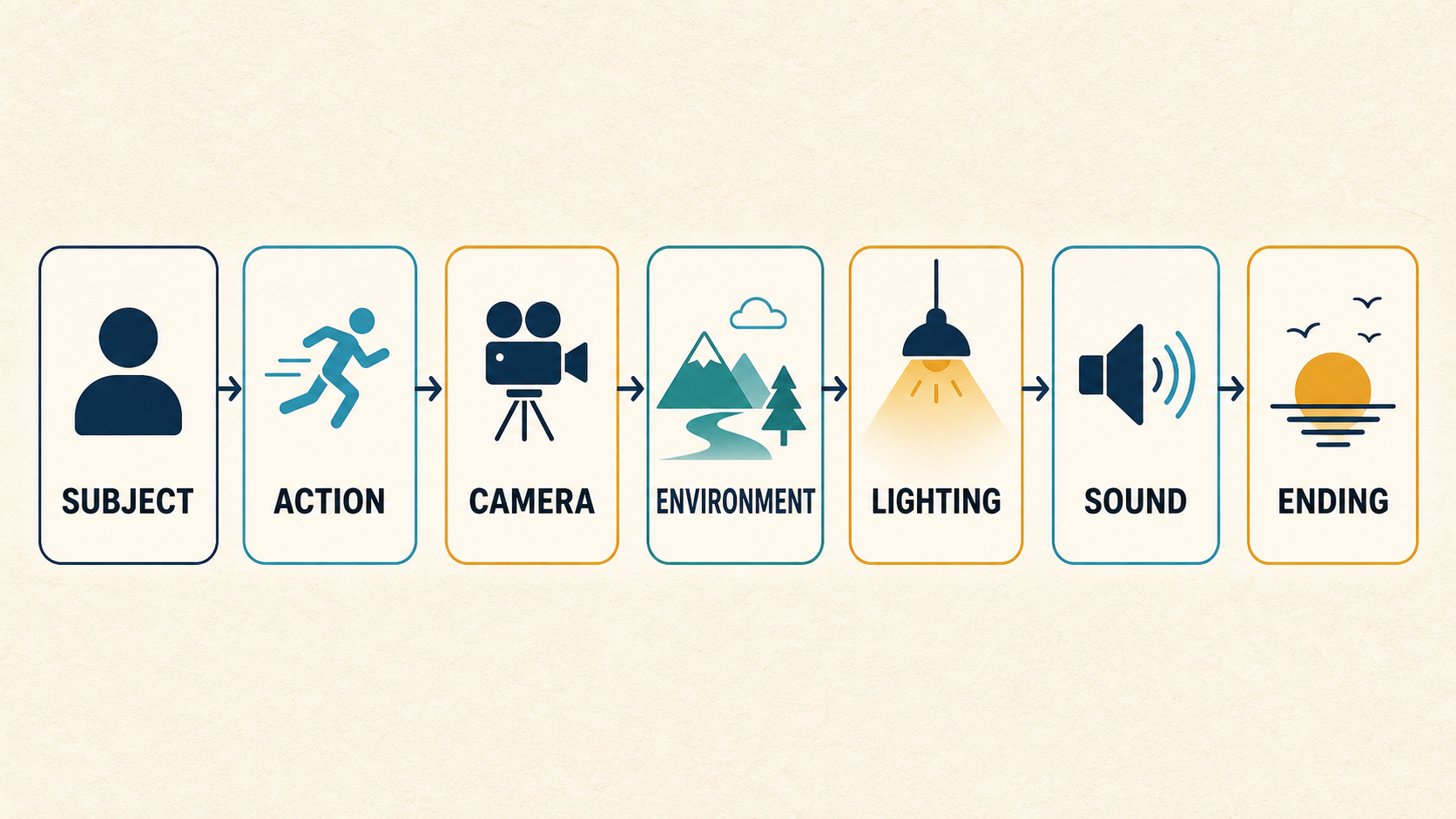
Do not add more seconds to rescue an unclear prompt. Rewrite the order instead. The Kling AI prompt guide explains how to separate subject, action, scene, camera, and constraints. For camera wording, use the camera movement prompt guide.
When timing matters, write an ending that can be seen: "The camera stops as the cyclist reaches the red awning" is easier to review than "cinematic ending." You can then tell whether the duration gave the action enough room.
Turn sound on only when it belongs to the shot
Kling 3.0 supports native audio, and KlingVideo exposes a sound switch for the current text and image workflows. Sound on is useful when the generated audio should follow the visual event, such as footsteps matching a walk, ambience matching a location, or an impact landing at a specific moment.
If sound is on, state its role in the prompt. For example:
A quiet subway platform at night. A train enters from the tunnel as the camera slowly pans right. Low rail noise rises, the brakes hiss as the train stops, and the ambience settles before the final frame.
Sound off makes sense when your edit already has a music track, a recorded voiceover, licensed effects, or a mix that must remain consistent across several clips. It also removes audio as a variable while you test the visual direction.
Do not treat the switch as an afterthought. Sound changes both the generation brief and the credit quote. If dialogue, ambience, or timing is central to the concept, plan it with the image. The Kling 3.0 native audio guide has more detailed prompt patterns.
A draft, review, and final settings matrix
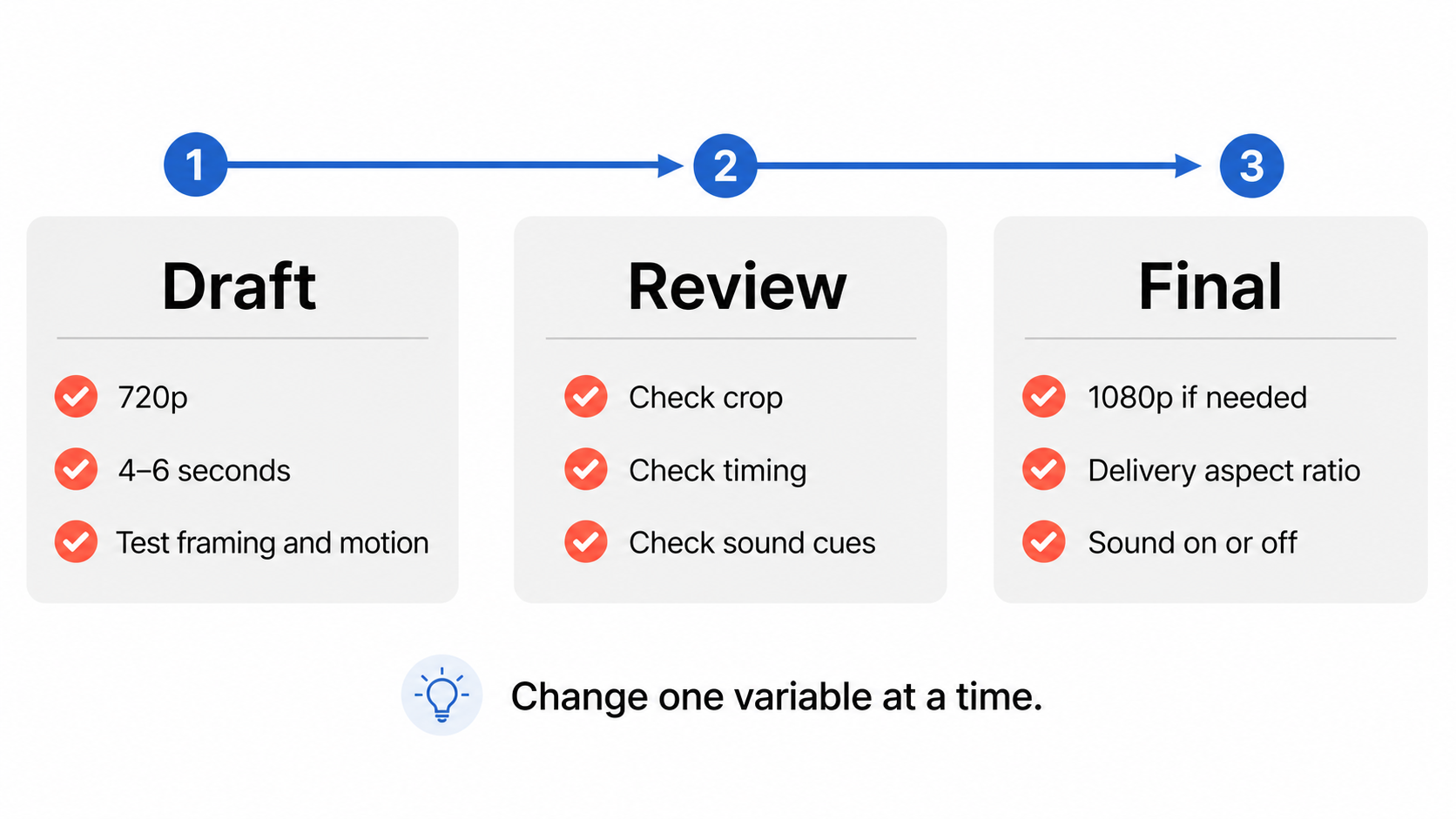
Change one variable at a time so the next result answers a specific question.
| Stage | Resolution | Aspect ratio | Duration | Sound | Goal |
|---|---|---|---|---|---|
| Draft | 720p | Final delivery frame | 4 to 6 seconds when possible | Off unless audio is being tested | Check composition, motion, and prompt direction |
| Review | 720p | Final delivery frame | Full intended length | Match the intended audio workflow | Check crop, timing, ending, and sound cues |
| Final candidate | 1080p if delivery needs it | Final delivery frame | Approved length | Approved on or off state | Produce the version intended for export or handoff |
The review stage prevents a common waste pattern: changing the prompt, duration, aspect ratio, sound, and resolution in the same attempt. If the result improves, you will not know which change helped. Keep the final frame fixed, change one variable, and compare against the previous version.
A five-step setup before generation
- Write down the final placement and select 16:9, 9:16, or 1:1.
- Describe one visible action and one main camera behavior.
- Choose the shortest duration that can contain the action and ending.
- Decide whether generated sound is part of the concept.
- Start at 720p. Move to 1080p only after the shot direction passes review.
The generator shows the current credit quote before submission. Read it after all settings are selected, especially when you change duration, resolution, or sound.
FAQ
Is 1080p always better than 720p for Kling AI video?
1080p provides a higher-resolution output, but it does not guarantee better motion, composition, prompt adherence, or continuity. Use 720p to test the shot. Choose 1080p when the direction is stable and the delivery needs the additional pixels.
Which aspect ratio should I use for TikTok, Reels, or Shorts?
Use 9:16 when the final placement is a full-screen vertical feed. Compose for the narrow frame from the start, keep the subject clear of overlay areas, and avoid sideways action that depends on landscape width.
How long can a Kling 3.0 video be on KlingVideo?
The current KlingVideo text-to-video control allows 4 to 15 seconds. The default is 5 seconds. Choose the duration from the action sequence rather than selecting 15 seconds automatically.
Should I leave sound on?
Leave sound on when generated ambience, effects, or timed audio belong to the shot, and describe them in the prompt. Turn it off when you will add audio in editing or when you want to test the visual direction without another variable.
Do aspect ratio, duration, resolution, and sound affect credits?
The quote depends on the selected model and settings. For Kling 3.0, duration is billed per second, while resolution and sound affect the applicable rate. Check the live quote in the generator and use the pricing page for current plan information.
Create the first settings draft
Pick the final frame, write one visible action, and start with the shortest useful draft. Open the Kling AI Video Generator to see the current options and credit quote before you generate.
Sources and methodology
- KlingVideo Kling 3.0 model page, used for the current KlingVideo parameter range and workflow guidance.
- KlingVideo text-to-video generator, used to verify the current defaults and available controls.
- Kling AI VIDEO 3.0 model user guide, used for official model duration and native-audio capability.
- Kling AI VIDEO 2.6 audio user guide, used for official audio-planning guidance and aspect-ratio context.
Last verified: August 14, 2026. Settings and credit quotes can change, so check the generator before submitting a job.