Quick answer
Use a start frame by itself when the opening composition matters but the model can decide where the motion finishes. Add an end frame when the final composition is part of the brief: a product must stop at a chosen angle, a character must arrive at a specific position, or one shot must hand off to the next. The end frame is a target, not a guarantee. If the two images disagree on subject identity, crop, camera angle, lighting, or background layout, the model has to solve those conflicts while creating motion. That can lead to a sudden cut, shape drift, or a result that approaches the end image only loosely.
On KlingVideo, open Image to Video, upload the start image, and choose First + Last Frames when you need the second image. Keep the pair visually compatible and describe the transition between them. If the output misses the ending, check the images before making the prompt longer. The most common problem is not a missing adjective. It is a frame pair that asks for too many visual changes at once.
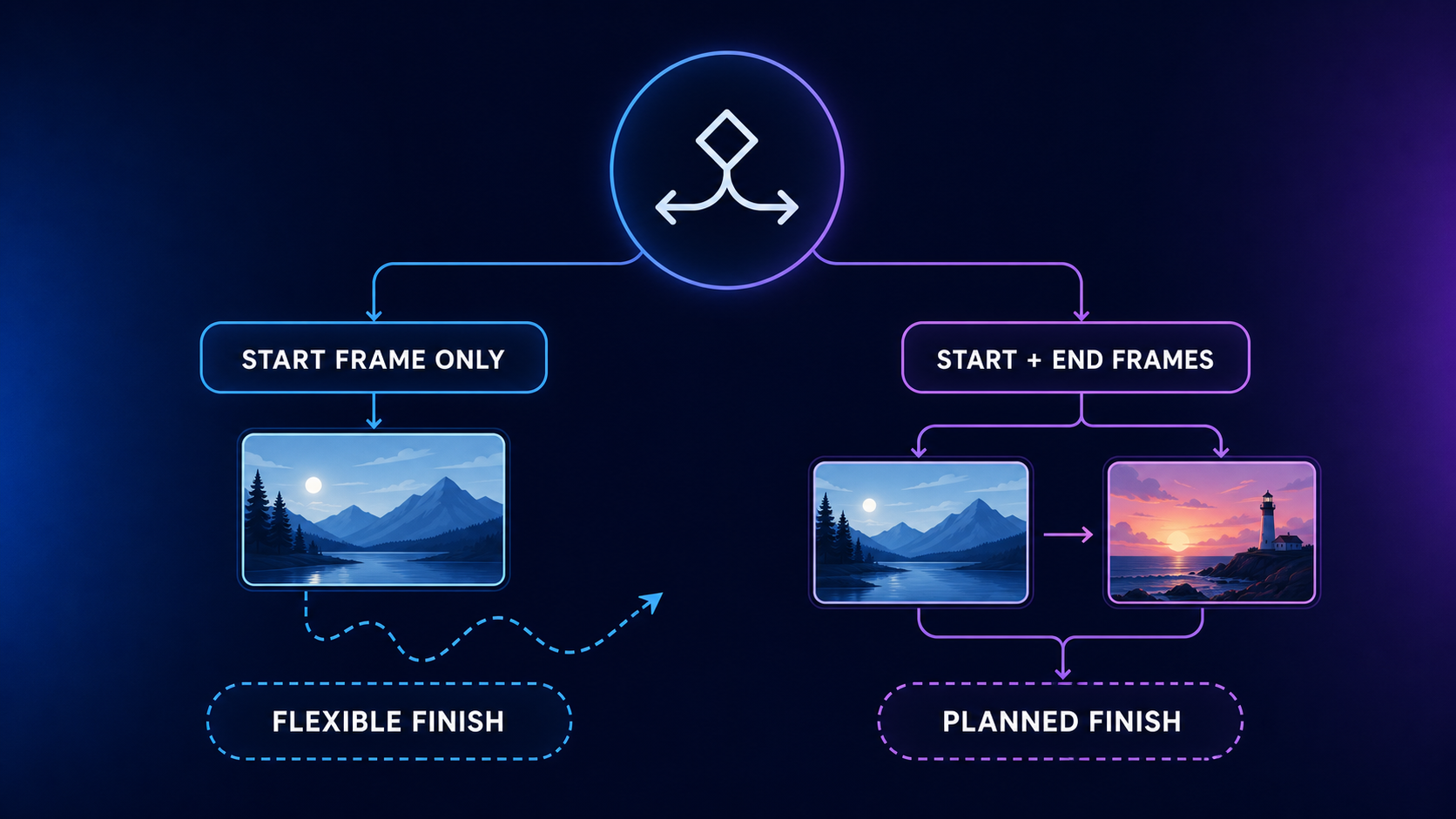
Start frame only or start and end frames?
| Your goal | Better starting mode | Why |
|---|---|---|
| Animate a portrait with a small head turn | Start frame only | The opening identity matters; the exact final pose can stay flexible |
| Add natural motion to a landscape or illustration | Start frame only | A fixed ending may restrict motion without adding useful control |
| Rotate a product toward a chosen hero angle | Start and end frames | The final orientation is part of the deliverable |
| Move a character from one marked position to another | Start and end frames | Both spatial anchors matter |
| Build a transition between two planned compositions | Start and end frames | The model needs to see the destination |
| Explore an idea before locking the shot | Start frame only | One image leaves more room to discover useful motion |
The choice is about control. A start frame tells the model what the first image must look like. An end frame adds a second visual constraint. More control can help when the destination is clear, but it also creates another place for the inputs to conflict.
For general image preparation, use the Kling AI Image-to-Video Checklist. This guide starts one step later, after the first image is already usable.
What each frame controls
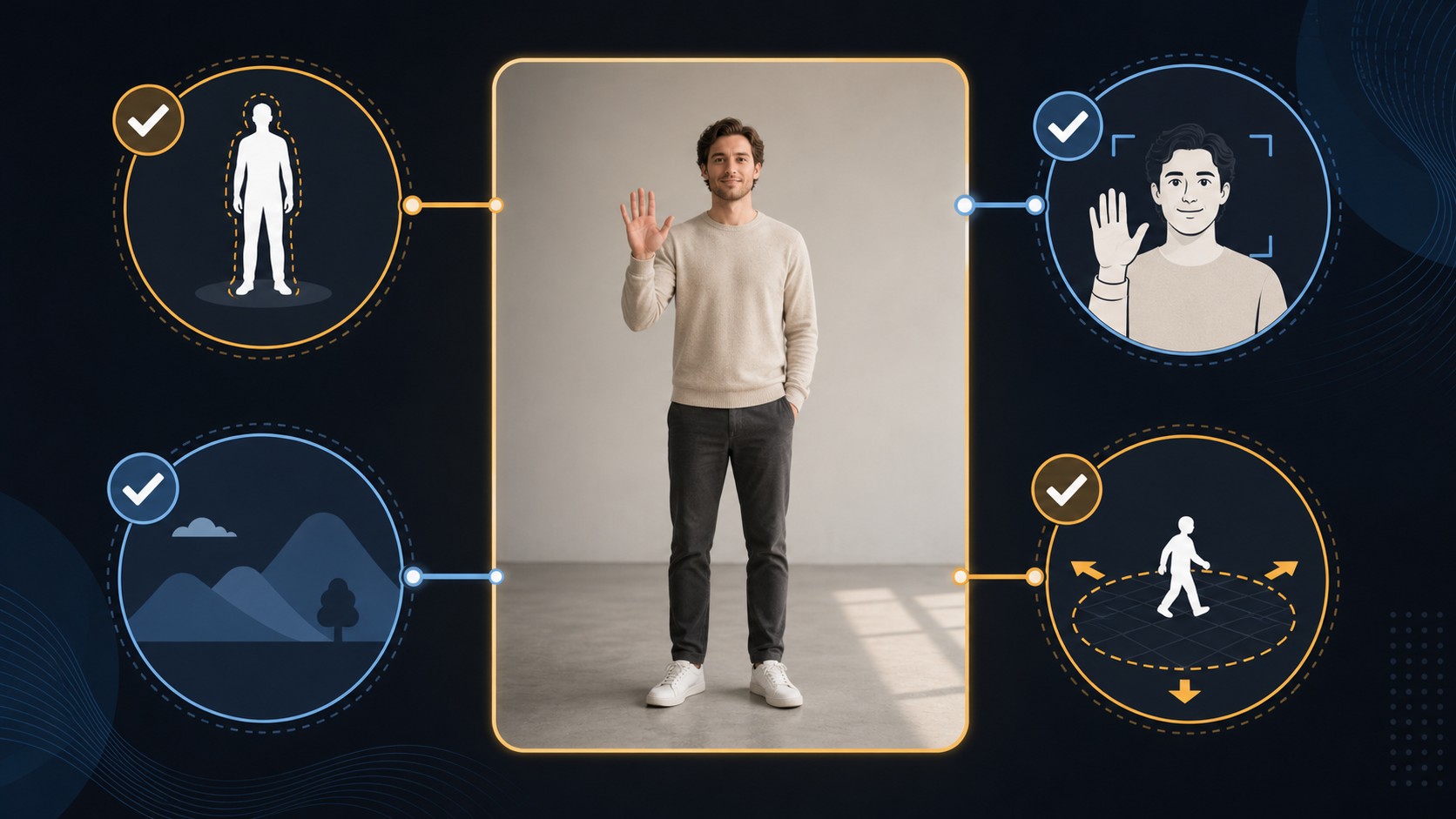
The start frame anchors the opening subject, crop, camera position, background, and visual style. Your prompt then explains the motion that should follow. With start-frame-only generation, the model has room to choose the final pose and composition.
The end frame adds a destination. It is useful when you need a readable before-and-after change, a controlled final product angle, a match cut, or a shot that must connect to another planned image. It does not function like a fixed keyframe in a traditional animation timeline. Generative video still has to invent every frame between the two references, and that path is not deterministic.
The official Kling AI start and end frame guide recommends using two images with a similar theme and composition. It warns that large differences can trigger a shot change. The current Kling VIDEO 3.0 guide also lists start and end frames-to-video as a supported capability. These sources confirm the workflow, but they do not promise exact arrival or identical results on every run.
Prepare a compatible frame pair
Check the pair side by side before uploading it.
| Check | Compatible pair | Conflicting pair |
|---|---|---|
| Subject | Same person, product, or object with stable defining features | Different face, clothing, logo, shape, or number of objects |
| Crop | Similar shot size with room for the requested movement | Close-up at the start and distant wide shot at the end without a planned camera move |
| Camera | Viewpoint changes along one readable path | Viewpoints imply an unexplained cut or impossible orbit |
| Background | Major lines, horizon, and furniture stay coherent | Room layout, horizon, or large objects jump position |
| Lighting | Direction and color temperature can change gradually | Daylight becomes hard night lighting without enough narrative reason |
| Subject position | Movement can travel from the first position to the second | The subject changes scale, direction, and side of frame at the same time |
Try to make one main change. A product can rotate while the camera stays still. A character can walk across a stable room. The camera can push in while the subject keeps the same pose. Asking the subject, camera, background, lighting, and style to transform together gives the model several competing routes.
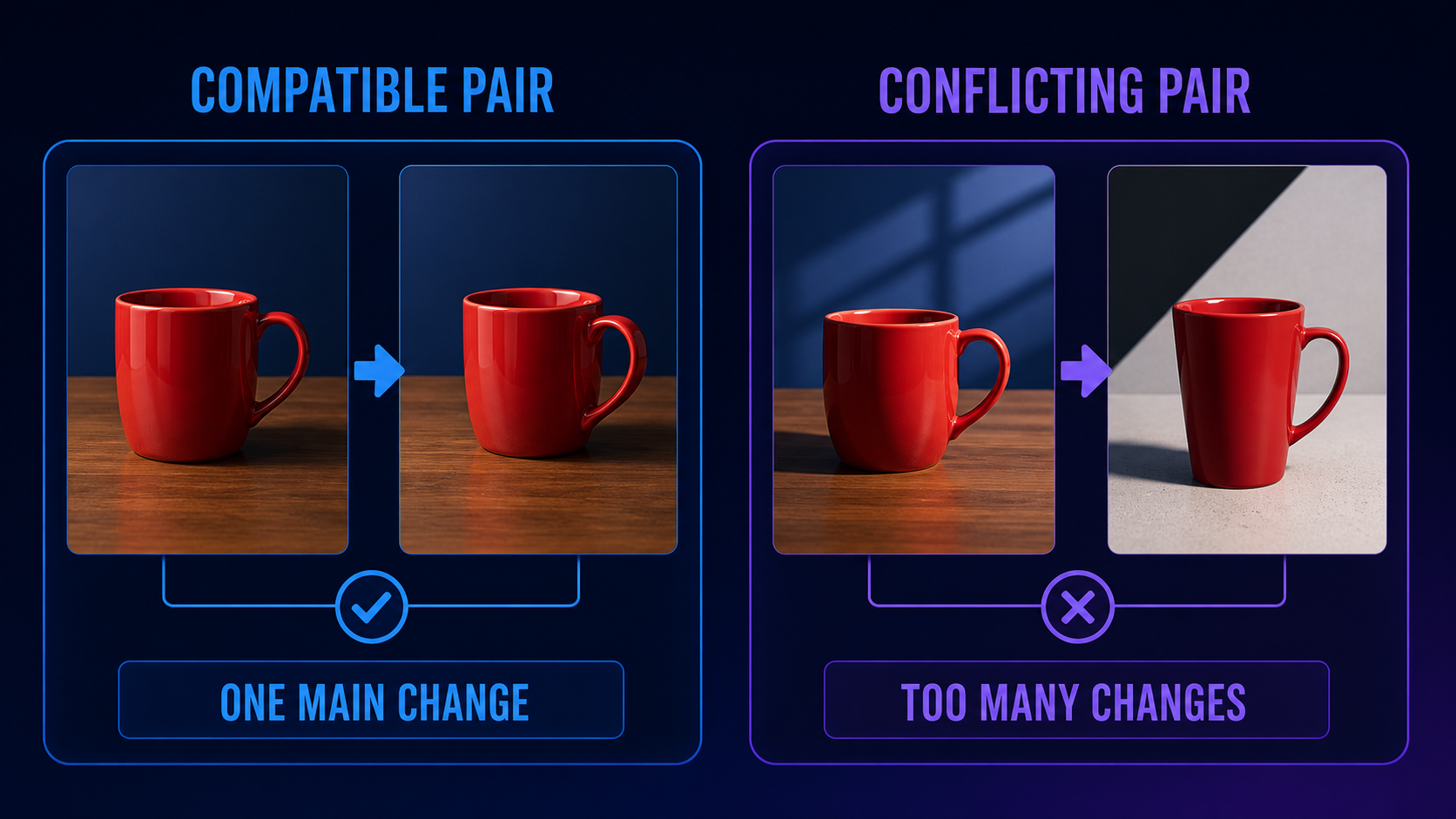
Write the prompt as a bridge between the images:
The red ceramic mug rotates slowly clockwise on the wooden table. The camera stays fixed. Keep the printed label, handle shape, table grain, and warm window light unchanged. The mug settles into the angle shown in the end frame and holds for the final moment.
The prompt names the motion, locks the details that should not drift, and describes the final hold. It does not waste space redescribing every visible object.
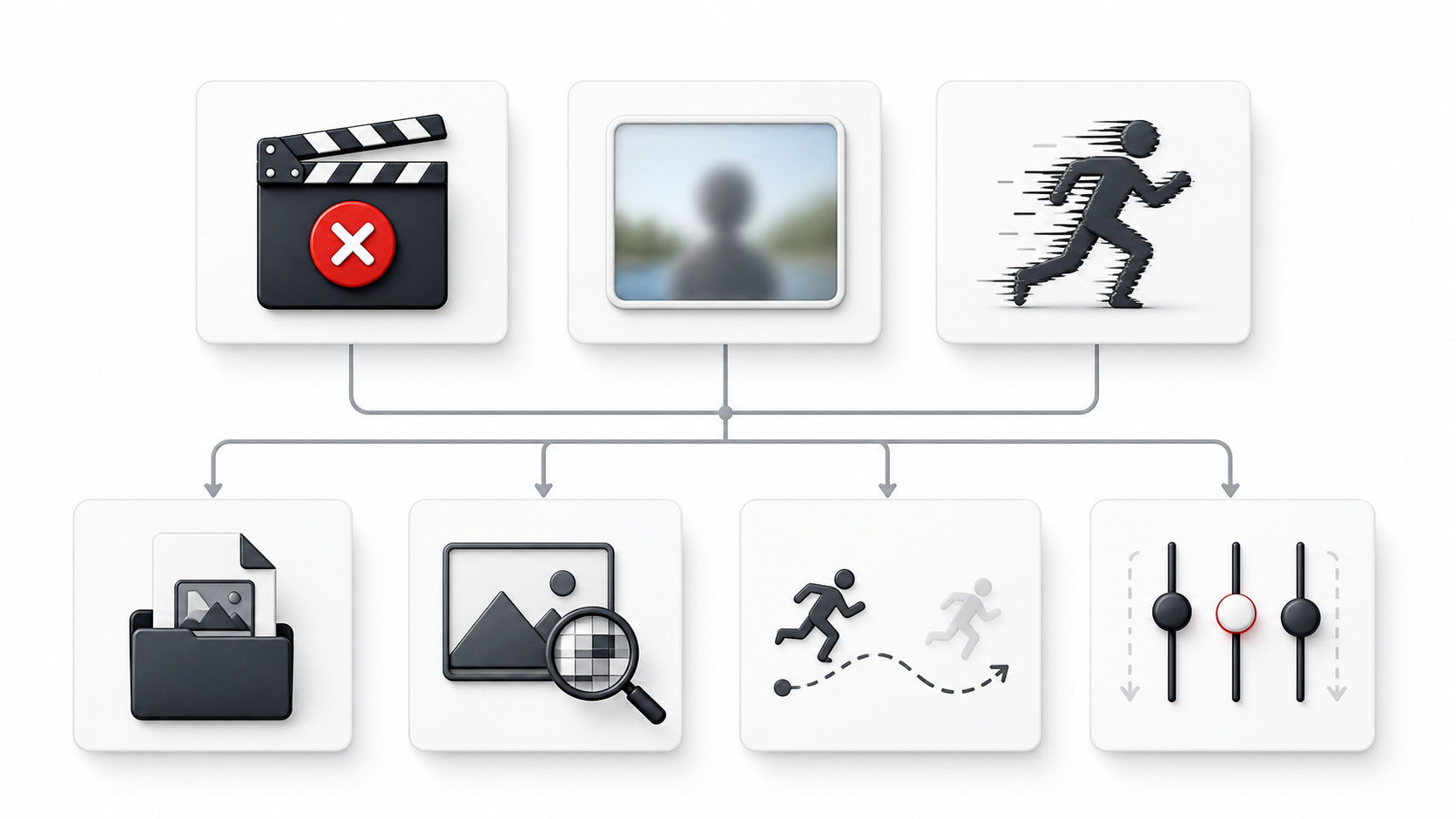
Common symptoms of a conflicting pair
| Symptom | What to inspect first | First revision |
|---|---|---|
| The clip cuts instead of transitioning | Large change in crop, background, or camera angle | Make the two frames more similar or describe one intentional camera path |
| The subject changes identity | Face, clothing, product label, or shape differs between frames | Rebuild the end frame from the same subject source |
| The motion stalls near the end | Destination requires too much travel or transformation | Reduce the distance or simplify the final composition |
| The result reaches the right area but not the exact pose | End pose is visually ambiguous or conflicts with the prompt | Clarify one final action and remove competing instructions |
| Background bends or jumps | Room lines, horizon, or large objects do not match | Align the background or lock the camera |
| The model ignores the end image | End frame adds many changes that the prompt never explains | Keep one main change and describe how it should happen |
These symptoms are inspection clues, not guaranteed diagnoses. Change one thing, generate again, and compare. If you replace both images and rewrite the prompt in the same attempt, you will not know which change helped.
End frame not working: check in this order
- Confirm the frame mode. On the KlingVideo image-to-video route, choose First + Last Frames and confirm both image slots are filled before generating.
- Check subject identity. The same person or object should keep the features that matter. If the end image was produced from a different source, rebuild it from the start subject.
- Match crop and aspect. Keep both images at the same aspect ratio and avoid a large shot-size jump unless the prompt gives one clear camera move.
- Trace the camera path. Ask whether a real camera could move from the first view to the second without a cut. If not, simplify the end view.
- Compare background geometry. Doors, tables, horizons, and strong perspective lines should not teleport.
- Reduce simultaneous changes. Keep the subject, camera, or environment stable while one main change happens.
- Rewrite the transition, not the images. State what moves, what stays fixed, and what the final hold looks like.
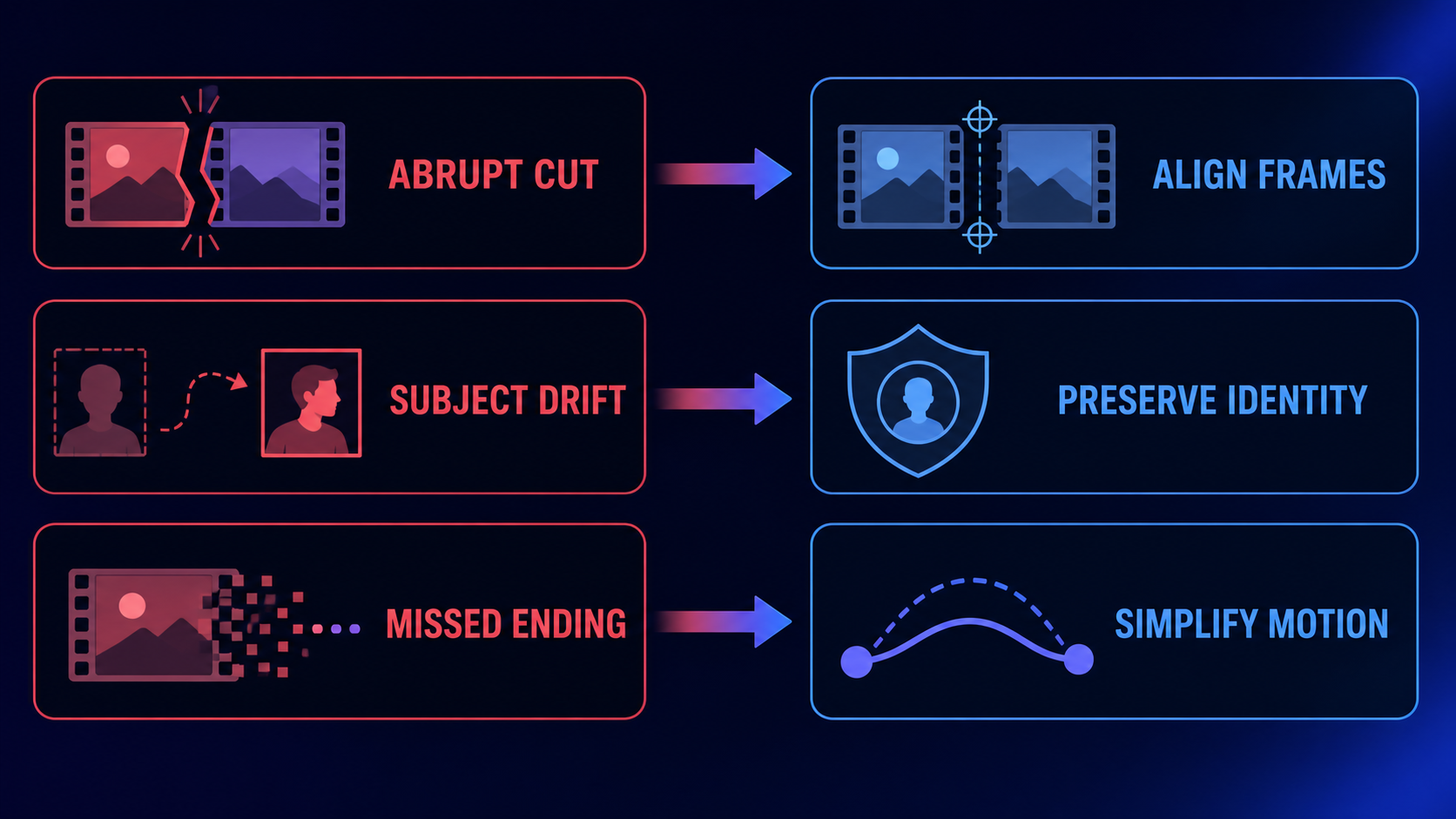
If the pair still fights itself after these checks, return to start-frame-only mode. A flexible ending is better than forcing a second image that does not belong to the same shot.
A reviewable start-only and start-plus-end case
Consider a product shot with a red mug on a wooden table.
In the start-only version, the first image shows the label facing the camera. The prompt asks for a slow clockwise rotation with a fixed camera. The opening identity, crop, and lighting are anchored, but the final angle remains open. Reviewers can judge whether the motion looks natural, yet they cannot require one exact ending composition.
In the start-plus-end version, the first image stays the same and the second image shows the same mug turned about a quarter rotation. The label, handle, table grain, crop, and lighting still match. Now the final angle is part of the test. If the end image changes the mug shape or shifts the table perspective, the comparison is invalid before generation.
This is a reviewable workflow example, not a claimed KlingVideo output test. Kling AI's official guides provide public start/end input and output panels that verify the feature. KlingVideo did not run a new paid comparison for this article. The evidence supports how to structure and inspect the workflow, not a success-rate claim.
FAQ
Can I use an end frame without a start frame?
No. The current workflow starts from a required start image. The end image is an additional destination, not a replacement for the first frame.
Does an end frame guarantee the last video frame?
No. It guides the destination. The model still generates the transition, so conflicting inputs or ambiguous motion can produce drift.
Should the start and end images be almost identical?
They should be clearly related, but not identical. Keep the same subject, visual world, and compatible camera geometry. Change only what the shot needs to change.
Why does Kling AI cut between my frames?
The official guide warns that large differences can cause a shot change. Compare crop, viewpoint, subject identity, background, and lighting. A pair that reads like two scenes may be treated like two scenes.
Is a longer prompt better for start and end frames?
Only when it removes ambiguity. A useful prompt states the motion path, fixed details, camera behavior, and final hold. Extra style words will not repair incompatible images.
What settings are available on KlingVideo?
The current Kling 3.0 image-to-video configuration requires a start image and supports an optional end image, 4 to 15 seconds, 720p or 1080p, and a sound setting. Availability and credit cost can change, so check the generator before submitting.
Open Image to Video
Prepare a compatible pair, choose one main transition, and open KlingVideo Image to Video. If you only need to protect the opening composition, start with one frame. Add the end frame when the destination itself needs review.
For broader model capabilities, see Kling 3.0. For prompt structure, use the Kling AI Prompt Guide.
Sources and methodology
- Kling VIDEO 3.0 Model User Guide, official Kling AI documentation. Used to verify image-to-video and start/end-frames-to-video support. Accessed 2026-08-08.
- Start and End Frames, official Kling AI guide. Used for the two-image workflow, public input/output examples, and the warning about large differences between frames. Accessed 2026-08-08.
- KlingVideo Image to Video and Kling 3.0, current product pages and configuration. Used to verify the route, frame modes, duration, resolution, and sound controls. Checked 2026-08-08.
The article separates official capability evidence from KlingVideo product configuration. No new paid video generation was run, and no success rate is claimed. Last verified: 2026-08-08.