Quick answer
The best tool depends on what the viewer must do. Use a screen-capture product such as Supademo when people need to see the real interface or follow a clickable tour. Pick Synthesia when the presenter, narration, and localization are central. Descript works well when you want to record the real screen, edit by changing a transcript, add captions, and deliver a conventional video. Kling 3.0 fits a different part of the job: short, cinematic image-to-video clips for an opening, a feature reveal, a transition, or visual B-roll.
For most SaaS launches, the strongest workflow is a stack rather than one tool. Capture the real product first. Add a presenter or narration only if it helps the audience. Use generative clips where exact interface fidelity is not required. Then check every screen, caption, permission, and export before publishing.
Visual prompt: A premium bright studio desk with a laptop and phone, abstract SaaS screens, a video timeline, neutral white and graphite styling, realistic product photography.
Choose the demo job before the tool
"AI product demo" can mean several things: an interactive sales tour, a narrated launch video, a captioned support recording, or an attention-grabbing opening that does not show the interface at all.
| Demo job | Best starting point | Why it fits | Main limitation to plan around |
|---|---|---|---|
| Clickable walkthrough of the real product | Supademo | Captures actual product steps and can publish an interactive link or export video | You still need a stable demo account and clean source screens |
| Presenter-led or multilingual explanation | Synthesia | Combines screen recording, narration, avatars, and language options | Avatar licensing differs by distribution channel |
| Screen tutorial that needs fast editing | Descript | Records the screen and edits video through a transcript, with captions and 4K on paid tiers | It is an editor, not an automatic interactive tour builder |
| Cinematic opening, reveal, or B-roll | Kling 3.0 image-to-video | Animates a supplied image into a short visual clip with duration, resolution, and sound controls | It should not be trusted to preserve small UI text or exact layouts |
This is a workflow comparison based on current official product, pricing, and licensing pages checked on August 21, 2026. It is not a same-input rendering benchmark, so it does not rank image quality, speed, or reliability across the four products.
Exact screens require capture, not reconstruction
If the viewer needs to read a button label, understand navigation, or repeat a setup sequence, record the real interface. Generative video can be useful around that footage, but it can also change text, icons, spacing, cursor paths, and component positions. A beautiful approximation is still a bad product instruction if the screen is wrong.
Start by preparing a clean demo workspace. Remove customer data, notifications, browser extensions, internal bookmarks, test errors, and anything that should not become public. Use a realistic but disposable account. Set the browser size before recording, and keep it stable across takes. If the product is responsive, record desktop and mobile separately instead of squeezing both experiences into one frame.
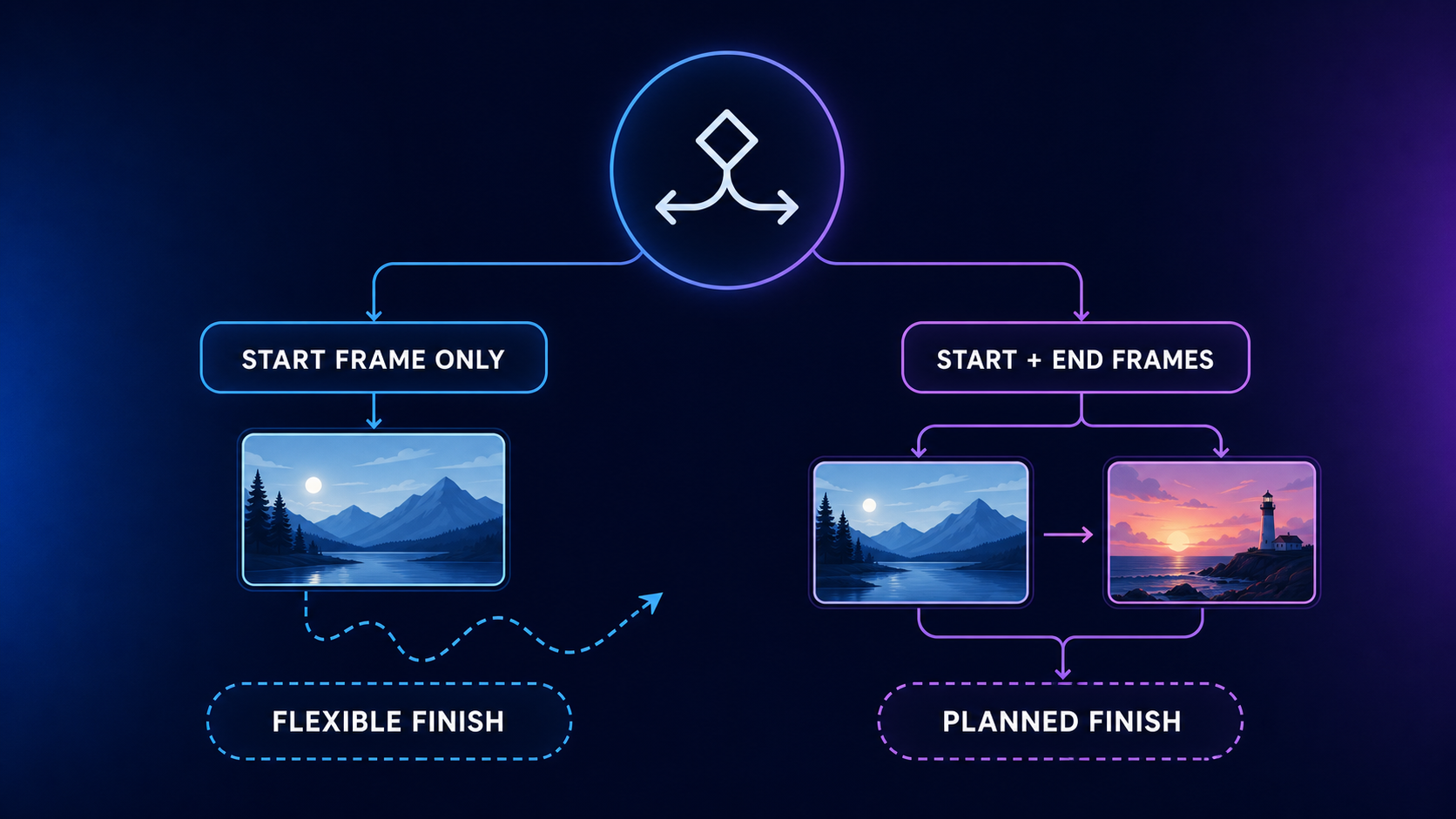
Use generative footage for moments where visual interpretation is welcome: an app icon becoming a scene, a still product image gaining camera motion, an abstract transition between chapters, or a short outcome shot. The Kling 3.0 image-to-video generator accepts a required start image, supports an optional end image, offers 4 to 15 second clips, 720p or 1080p output, and sound on or off in the current KlingVideo configuration. Those controls are useful for source clips. They do not turn a generated scene into proof of the real interface.
Supademo for interactive product tours
Supademo is the most direct fit here when the demo itself should remain interactive. Its product demo maker records a browser workflow, turns steps into a guided experience, and supports elements such as voiceovers and branching. A demo can be shared through an interactive link or exported as video. Viewer analytics are available on higher tiers.
The free plan currently includes five guided interactive demos, 50 4K recordings, video editing, GIF export, and MP4 export up to 1080p with a watermark. The Scale plan is listed at $38 per creator per month and adds features including 4K export, voiceovers, captions, and analytics. Check the live pricing page before purchase because limits and billing terms can change.
This approach preserves the real product flow better than a substitute interface. It suits onboarding, sales follow-up, release notes, and help content. Someone still needs to plan the path, keep the account state consistent, write concise step copy, and retest every branch after the product changes.
Supademo's terms say customers retain ownership of their content and are responsible for the rights to material they upload. Public availability depends on sharing and embedding settings. Review those settings before placing customer-facing or internal workflows in a demo.
Synthesia for presenter-led and localized demos
Synthesia is better suited to a video in which a host explains the product. Its official product demo page describes screen recording, editable narration, automatic trimming and scene detection, clickable calls to action, branching, avatars, and multilingual production. This can reduce the coordination involved in recording a human presenter for every language or every product update.
The Basic plan is free and currently provides up to 10 minutes of video per month. Starter is listed at $29 per month and includes downloads, logo removal, and more than 125 avatars. Creator is listed at $89 per month and adds interactive features, API access, and more than 180 avatars. Enterprise is custom priced and lists more than 240 avatars. Treat these as access limits, not a guarantee that a specific avatar, language, or feature is included in every plan.
Distribution rights need a deliberate check. Synthesia's licensing help page allows stock or synthetic avatars in website product videos. It says those avatars cannot be used in paid television, Facebook, Instagram, YouTube, TikTok, Snapchat, or programmatic advertising. A demo made for a landing page may therefore need different assets before it becomes an ad campaign. Confirm the current policy and the rights for any custom avatar, music, footage, or uploaded brand material.
Visual prompt: A professional presenter in a bright modern studio beside abstract software, voice, subtitle, and localization panels, neutral enterprise styling.
Descript for recorded tutorials and fast editing
Descript fits teams that want a normal video file built from a real screen recording. Its screen recorder feeds into a text-based editor, so removing a sentence from the transcript can remove the matching section of video. The product also supports captions, templates, speaker detection, and exports. This is useful when a product manager or support specialist can explain a flow but does not want to learn a traditional multitrack editor first.
All Descript plans currently include screen recording, dynamic captions, templates, text-based editing, and speaker detection. The Free plan exports at 720p. Creator is listed at $15 monthly or $12 per month on annual billing, with 4K and watermark-free export. Pro is listed at $30 monthly or $24 per month on annual billing, with 4K and unlimited Overdub. Usage allowances and AI feature limits still vary by plan, so match the tier to the expected recording volume.
Descript's terms make the customer responsible for having rights to input material. They state that users own their input and output to the extent those items are protectable under applicable law. That does not clear third-party music, customer data, stock media, trademarks, or a colleague's recorded voice. Keep a simple rights record with the project files.
Kling 3.0 for visual openings and B-roll
Kling 3.0 is not a substitute for recording a functioning product. It is useful when the demo needs a visual layer that screen capture cannot provide: a cinematic opening from a campaign image, a camera move around a device mockup, an abstract illustration of a benefit, or a brief transition from a still screen to a wider scene.
The image-to-video workflow lets you provide a start image, add an optional end image, write a prompt up to 2,500 characters, and choose 4 to 15 seconds, 720p or 1080p, plus sound on or off. Plan each clip around one visible action. A short reveal with a stable subject is easier to edit than a prompt asking for the interface, the presenter, four feature changes, and a camera move at once.
KlingVideo currently offers free credits at signup, subscriptions, and credit packs. Credit use varies with model, duration, resolution, and selected options. The pricing page states that annual plans include commercial use while monthly plans do not. Check the current plan terms before using a generated clip in client work or advertising.
For a repeatable shot plan, use the practical steps in the Kling image-to-video checklist and confirm resolution, duration, and sound choices with the Kling AI video settings guide.

Visual prompt: A premium smartphone with abstract app cards moving into a cinematic studio scene, graphite and white palette, subtle warm light, realistic commercial photography.
A practical production stack
Most polished SaaS demos can be built with four passes:
- Capture the product. Record the exact workflow in Supademo or Descript. Use a controlled account and reset it before each take.
- Build the explanation. Add concise narration. Use a real voice, Descript editing, or Synthesia when an avatar and localization are genuinely useful.
- Add visual support. Generate short Kling clips for the opening, transitions, or benefit-led B-roll. Keep readable interface steps in the captured footage.
- Finish and verify. Normalize audio, add captions, check pacing, confirm rights, and watch the export on the actual destination page and device.
This separation makes revisions cheaper. When the product UI changes, replace the affected capture instead of regenerating the whole story. When a campaign changes, replace the opening. When a translation changes, update the narration and captions without touching verified screen steps.
Delivery checklist
| Check | What to verify before release |
|---|---|
| Interface accuracy | Labels, navigation, cursor position, account state, and mobile or desktop layout match the live product |
| Privacy | No customer records, private URLs, tokens, emails, internal bookmarks, or notifications are visible |
| Narration and captions | Names, numbers, timing, pronunciation, and translated UI terms match the product |
| Visual continuity | Device frames, aspect ratios, colors, and generated B-roll do not imply features the product lacks |
| Rights | Avatar, voice, music, stock media, screenshots, logos, and generated assets are cleared for the destination |
| Export | Resolution, codec, file size, captions, audio level, thumbnail, and playback work on the final channel |
| Call to action | The destination URL works and the next step matches what the video promises |
Frequently asked questions
Which tool is best for an exact SaaS walkthrough?
Start with Supademo for an interactive tour or Descript for a conventional recorded tutorial. Both begin with the real product screen. Choose based on whether the viewer should click through the experience or watch a finished video.
Can a generative video model reproduce an app screen accurately?
It may resemble the reference, but small text, icons, spacing, and interaction paths can change. Do not use generated footage as the only instruction for a real workflow. Capture the actual interface whenever accuracy matters.
When should I use an AI avatar?
Use one when a presenter improves comprehension, when updates are frequent, or when localization would otherwise require many recording sessions. Check the avatar license for the intended channel, especially paid advertising.
Do I need one tool or several?
Several is often more practical. Use one product to capture the interface, another to edit or localize, and Kling for short visual inserts. Keeping those jobs separate also makes later revisions easier.
What should I test before publishing?
Watch the export with fresh eyes and follow every shown step in the live product. Check mobile and desktop playback, captions, audio, permissions, links, and licensing. Ask someone who did not make the video to complete the promised task from the demo alone.
Sources and methodology
This comparison uses official pages checked on August 21, 2026: KlingVideo image-to-video, KlingVideo pricing, Supademo product demo maker, Supademo pricing, Supademo terms, Synthesia product demo maker, Synthesia pricing, Synthesia licensing, Descript screen recording, Descript pricing, and Descript terms.
Features, prices, allowances, and license terms can change. Recheck the relevant official page before buying a plan or approving distribution. No same-input quality, speed, or reliability test was performed for this comparison.
Ready to create the visual layer for your launch? Open the Kling 3.0 image-to-video generator, upload a clean start image, and build one short shot at a time.